> ## Documentation Index
> Fetch the complete documentation index at: https://docs.firecrawl.dev/llms.txt
> Use this file to discover all available pages before exploring further.
# 在客户端中配置 Firecrawl MCP
> 托管版和本地 Firecrawl MCP 服务器的客户端专用配置。
请先参阅 [连接 Firecrawl MCP](/zh/mcp-server/connect),选择账户 OAuth、无人值守的 API 密钥访问或免密钥访问。以下客户端专用示例均采用相同的模式感知约定。
## 在 Cursor 中运行
一键安装托管的免密钥服务器 (无需 API 密钥) :
 或者,手动将其添加到 `~/.cursor/mcp.json`:
```json theme={null}
{
"mcpServers": {
"firecrawl": {
"url": "https://mcp.firecrawl.dev/v2/mcp"
}
}
}
```
或者,手动将其添加到 `~/.cursor/mcp.json`:
```json theme={null}
{
"mcpServers": {
"firecrawl": {
"url": "https://mcp.firecrawl.dev/v2/mcp"
}
}
}
```
### 使用 API 密钥在本地运行
注意:需要 Cursor 0.45.6 或更高版本。
如需最新配置说明,请参阅 Cursor 官方 MCP 服务器配置文档:
[Cursor MCP Server 配置指南](https://cursor.com/docs/context/mcp)
在 Cursor **v0.48.6** 中配置 Firecrawl MCP
1. 打开 Cursor 设置
2. 前往 Features > MCP Servers
3. 点击“+ Add new global MCP server”
4. 输入以下代码:
```json theme={null}
{
"mcpServers": {
"firecrawl-mcp": {
"command": "npx",
"args": ["-y", "firecrawl-mcp"],
"env": {
"FIRECRAWL_API_KEY": "YOUR-API-KEY"
}
}
}
}
```
在 Cursor **v0.45.6** 中配置 Firecrawl MCP
1. 打开 Cursor 设置
2. 前往 Features > MCP Servers
3. 点击“+ Add New MCP Server”
4. 输入以下内容:
* 名称:“firecrawl-mcp” (或您自定义的名称)
* 类型:“command”
* 命令:`env FIRECRAWL_API_KEY=your-api-key npx -y firecrawl-mcp@3.22.4`
> 如果您使用 Windows 时遇到问题,请尝试 `cmd /c "set FIRECRAWL_API_KEY=your-api-key && npx -y firecrawl-mcp@3.22.4"`
将 `your-api-key` 替换为您的 Firecrawl API 密钥。如果您还没有 API 密钥,可以创建账户并在 [https://www.firecrawl.dev/app/api-keys](https://www.firecrawl.dev/app/api-keys) 获取。
添加后,刷新 MCP 服务器列表即可看到新工具。Composer 代理会在适当时自动使用 Firecrawl MCP,但您也可以通过描述网页数据需求来明确要求使用它。按 Command+L (Mac) 打开 Composer,在提交按钮旁选择“Agent”,然后输入您的查询。
## 在 Windsurf 中运行
将以下内容添加到 `./codeium/windsurf/model_config.json`:
```json theme={null}
{
"mcpServers": {
"mcp-server-firecrawl": {
"command": "npx",
"args": ["-y", "firecrawl-mcp"],
"env": {
"FIRECRAWL_API_KEY": "YOUR_API_KEY"
}
}
}
}
```
## 以 Streamable HTTP 模式运行
如需在本地以 Streamable HTTP 传输方式运行服务器,而非使用默认的 stdio 传输方式:
```bash theme={null}
env HTTP_STREAMABLE_SERVER=true FIRECRAWL_API_KEY=fc-YOUR_API_KEY npx -y firecrawl-mcp@3.22.4
```
本地使用 URL:[http://localhost:3000/v2/mcp;或使用托管地址:https://mcp.firecrawl.dev/v2/mcp](http://localhost:3000/v2/mcp;或使用托管地址:https://mcp.firecrawl.dev/v2/mcp)
## 通过 Smithery 安装 (旧版)
要通过 [Smithery](https://smithery.ai/server/@mendableai/mcp-server-firecrawl) 自动为 Claude Desktop 安装 Firecrawl:
```bash theme={null}
npx -y @smithery/cli install @mendableai/mcp-server-firecrawl --client claude
```
## 在 VS Code 中运行
如需一键安装,请点击以下任一安装按钮……
[](https://insiders.vscode.dev/redirect/mcp/install?name=firecrawl\&inputs=%5B%7B%22type%22%3A%22promptString%22%2C%22id%22%3A%22apiKey%22%2C%22description%22%3A%22Firecrawl%20API%20Key%22%2C%22password%22%3Atrue%7D%5D\&config=%7B%22command%22%3A%22npx%22%2C%22args%22%3A%5B%22-y%22%2C%22firecrawl-mcp%22%5D%2C%22env%22%3A%7B%22FIRECRAWL_API_KEY%22%3A%22%24%7Binput%3AapiKey%7D%22%7D%7D) [](https://insiders.vscode.dev/redirect/mcp/install?name=firecrawl\&inputs=%5B%7B%22type%22%3A%22promptString%22%2C%22id%22%3A%22apiKey%22%2C%22description%22%3A%22Firecrawl%20API%20Key%22%2C%22password%22%3Atrue%7D%5D\&config=%7B%22command%22%3A%22npx%22%2C%22args%22%3A%5B%22-y%22%2C%22firecrawl-mcp%22%5D%2C%22env%22%3A%7B%22FIRECRAWL_API_KEY%22%3A%22%24%7Binput%3AapiKey%7D%22%7D%7D\&quality=insiders)
如需手动安装,请将以下 JSON 块添加到 VS Code 的“用户设置 (JSON)”文件中。按 `Ctrl + Shift + P`,然后输入 `Preferences: Open User Settings (JSON)` 即可打开该文件。
```json theme={null}
{
"mcp": {
"inputs": [
{
"type": "promptString",
"id": "apiKey",
"description": "Firecrawl API Key",
"password": true
}
],
"servers": {
"firecrawl": {
"command": "npx",
"args": ["-y", "firecrawl-mcp"],
"env": {
"FIRECRAWL_API_KEY": "${input:apiKey}"
}
}
}
}
}
```
您也可以将其添加到工作区中的 `.vscode/mcp.json` 文件,以便与他人共享该配置:
```json theme={null}
{
"inputs": [
{
"type": "promptString",
"id": "apiKey",
"description": "Firecrawl API Key",
"password": true
}
],
"servers": {
"firecrawl": {
"command": "npx",
"args": ["-y", "firecrawl-mcp"],
"env": {
"FIRECRAWL_API_KEY": "${input:apiKey}"
}
}
}
}
```
\*\*注意:\*\*部分用户报告称,由于 VS Code 使用过时的 schema 格式验证 JSON,将 MCP 服务器添加到 VS Code 时会遇到问题 ([microsoft/vscode#155379](https://github.com/microsoft/vscode/issues/155379)) 。
这会影响包括 Firecrawl 在内的多种 MCP 工具。
\*\*解决方法:\*\*在 VS Code 中禁用 JSON 验证,以便 MCP 服务器能够正常加载。
请参见:[directus/directus#25906 (评论) ](https://github.com/directus/directus/issues/25906#issuecomment-3369169513)。
通过其他扩展调用 MCP 服务器时仍可正常使用,但直接在 MCP 服务器列表中注册时会出现此问题。待 VS Code 更新其 schema 验证后,我们会补充相关说明。
## 在 Claude Desktop 上运行
如需以交互方式连接账户,请添加账户端点并完成浏览器 OAuth 流程:
```json theme={null}
{
"mcpServers": {
"firecrawl": {
"url": "https://mcp.firecrawl.dev/v2/mcp-oauth"
}
}
}
```
对于无人值守或使用 API 密钥的配置,请改用 `https://mcp.firecrawl.dev/v2/mcp`,并设置 `Authorization: Bearer ` 请求头。
如果出现 "无法连接到 MCP 服务器" 错误,可能是你的 Claude Desktop 版本不支持 Streamable HTTP 传输。请改用本地 npx 方式 (需要 [Node.js](https://nodejs.org)) :
```json theme={null}
{
"mcpServers": {
"firecrawl": {
"command": "npx",
"args": ["-y", "firecrawl-mcp"],
"env": {
"FIRECRAWL_API_KEY": "YOUR_API_KEY"
}
}
}
}
```
如果出现 `spawn npx ENOENT` 错误,说明 Node.js 未安装,或未添加到系统 PATH。从 [nodejs.org](https://nodejs.org) 安装 Node.js (LTS 版本) ,然后完全重启 Claude Desktop。在 Windows 上,也可以在命令提示符中运行 `where npx`,并将完整路径 (例如 `C:\\Program Files\\nodejs\\npx.cmd`) 作为 `command` 的值。
## 在 Claude Code 中运行
使用 Claude Code CLI 添加 Firecrawl MCP 服务器。您可以使用远程托管 URL,或在本地运行:
```bash theme={null}
# 交互式连接账户(推荐)
claude mcp add --transport http firecrawl https://mcp.firecrawl.dev/v2/mcp-oauth
# 如需无人值守的 API 密钥配置,请使用 Authorization 请求头
claude mcp add --transport http firecrawl https://mcp.firecrawl.dev/v2/mcp --header "Authorization: Bearer "
# 或通过 npx 在本地运行
claude mcp add firecrawl -e FIRECRAWL_API_KEY=fc-your-api-key -- npx -y firecrawl-mcp@3.22.4
```
## 在 Google Antigravity 上运行
Google Antigravity 支持通过其代理界面直接配置 MCP 服务器。
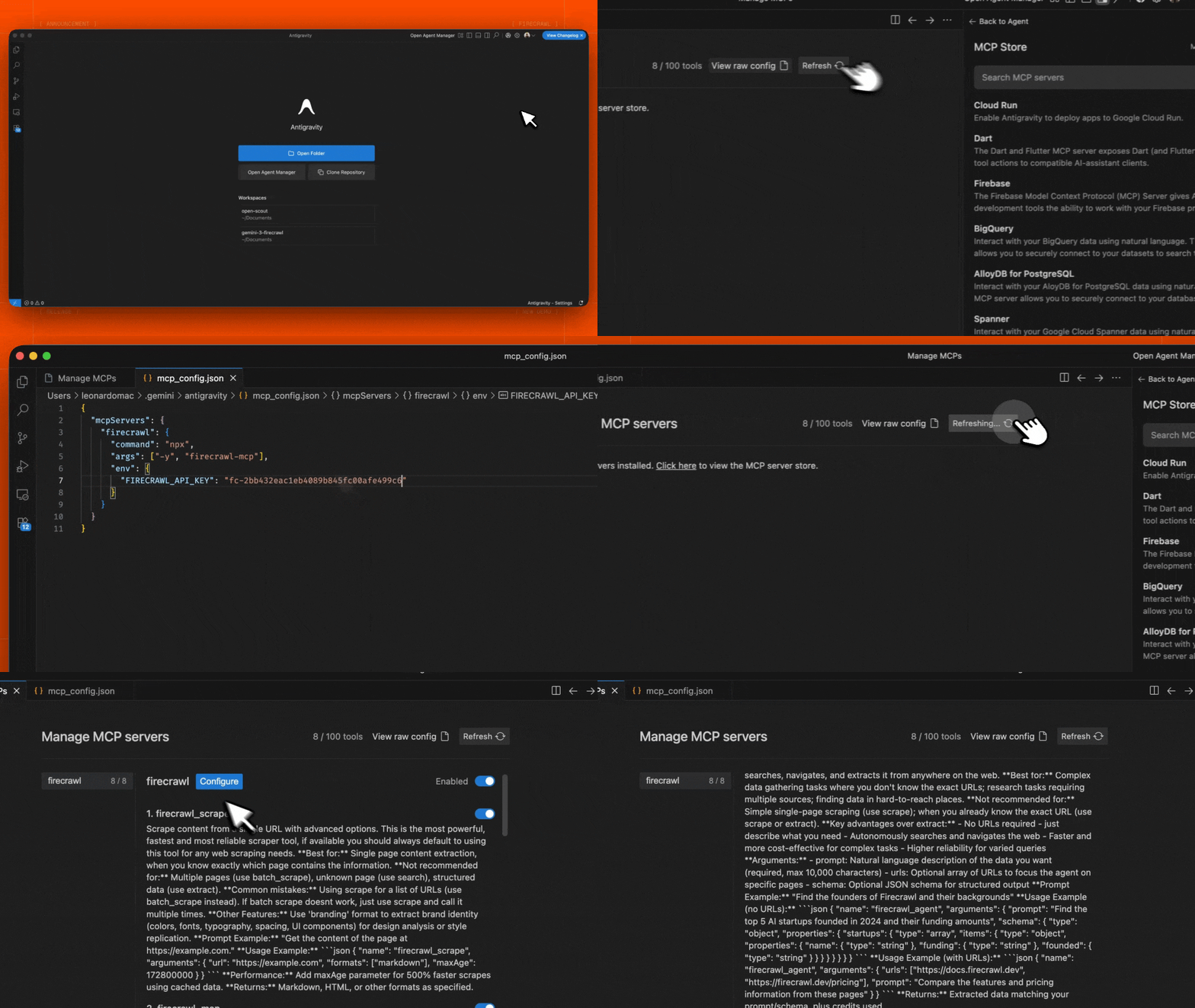 1. 在编辑器中打开代理侧边栏,或打开代理管理器视图
2. 点击 "..." (更多操作) 菜单,然后选择 **MCP 服务器**
3. 选择 **查看原始配置**,打开本地 `mcp_config.json` 文件
4. 添加以下配置:
```json theme={null}
{
"mcpServers": {
"firecrawl": {
"command": "npx",
"args": ["-y", "firecrawl-mcp"],
"env": {
"FIRECRAWL_API_KEY": "YOUR_FIRECRAWL_API_KEY"
}
}
}
}
```
5. 保存文件,然后在 Antigravity MCP 界面中点击 **刷新**,即可看到新工具。
将 `YOUR_FIRECRAWL_API_KEY` 替换为你的 [API 密钥](https://www.firecrawl.dev/app/api-keys)。
1. 在编辑器中打开代理侧边栏,或打开代理管理器视图
2. 点击 "..." (更多操作) 菜单,然后选择 **MCP 服务器**
3. 选择 **查看原始配置**,打开本地 `mcp_config.json` 文件
4. 添加以下配置:
```json theme={null}
{
"mcpServers": {
"firecrawl": {
"command": "npx",
"args": ["-y", "firecrawl-mcp"],
"env": {
"FIRECRAWL_API_KEY": "YOUR_FIRECRAWL_API_KEY"
}
}
}
}
```
5. 保存文件,然后在 Antigravity MCP 界面中点击 **刷新**,即可看到新工具。
将 `YOUR_FIRECRAWL_API_KEY` 替换为你的 [API 密钥](https://www.firecrawl.dev/app/api-keys)。
## 在 n8n 中运行
要在 n8n 中连接 Firecrawl MCP 服务器:
1. 前往 [https://firecrawl.dev/app/api-keys](https://www.firecrawl.dev/app/api-keys) 获取您的 Firecrawl API 密钥
2. 在 n8n 工作流中添加 **AI 代理** 节点
3. 在 AI 代理配置中添加新的 **工具**
4. 选择 **MCP Client Tool** 作为工具类型
5. 输入 MCP 服务器端点:
```
https://mcp.firecrawl.dev/v2/mcp
```
6. 将 **Server Transport** 设置为 **HTTP Streamable**
7. 将 **Authentication** 设置为 **Bearer**,然后粘贴您的 Firecrawl API 密钥;或者保留为 **None**,以使用免密钥免费档位
8. 在 **Tools to include** 中,您可以选择 **All**、**Selected** 或 **All Except**,这将启用相应的 Firecrawl 工具 (scrape、crawl、map、search、extract 等)
对于自托管部署,请使用 npx 运行 MCP 服务器,并启用 HTTP 传输模式:
```bash theme={null}
env HTTP_STREAMABLE_SERVER=true \
FIRECRAWL_API_KEY=fc-YOUR_API_KEY \
FIRECRAWL_API_URL=YOUR_FIRECRAWL_INSTANCE \
npx -y firecrawl-mcp@3.22.4
```
这会在 `http://localhost:3000/v2/mcp` 启动服务器,你可以在 n8n 工作流中将其用作端点。由于 n8n 需要使用 HTTP 传输,因此必须设置 `HTTP_STREAMABLE_SERVER=true` 环境变量。