> ## Documentation Index
> Fetch the complete documentation index at: https://docs.firecrawl.dev/llms.txt
> Use this file to discover all available pages before exploring further.
# Firecrawl MCP 服务器
> 通过模型上下文协议使用 Firecrawl 的 API
一个基于模型上下文协议 (MCP) 的服务器实现,集成了 [Firecrawl](https://github.com/firecrawl/firecrawl),可用于搜索、抓取以及与网页交互。我们的 MCP 服务器开源,代码托管在 [GitHub](https://github.com/firecrawl/firecrawl-mcp-server)。
## 功能
* 进行网页搜索并获取完整页面内容
* 从任意 URL 抓取干净、结构化的数据
* 解析 PDF、DOCX、XLSX 和 HTML 等本地文件
* 与页面交互 — 点击、导航和操作
* 借助自主代理进行深度研究
* 支持云端与自托管
* 支持 HTTP 流式传输
## 安装
你可以使用我们的远程托管 URL,或在本地运行服务器。请前往 [https://firecrawl.dev/app/api-keys](https://www.firecrawl.dev/app/api-keys) 获取你的 API 密钥。
**没有 API 密钥?** 连接到 `https://mcp.firecrawl.dev/v2/mcp` 即可使用远程免密钥免费档位。它是免费的,并且会按 IP 限流;当前免密钥工具列表请参见 [Rate Limits](/zh/rate-limits#keyless-no-api-key)。设置 `FIRECRAWL_API_KEY` 即可解锁所有 MCP 工具和更高的限额。
### 远程托管 URL
无需 API 密钥也可连接并开始使用远程免密钥免费档位 (按 IP 限流;当前工具列表请参见 [Rate Limits](/zh/rate-limits#keyless-no-api-key)) :
```bash theme={null}
https://mcp.firecrawl.dev/v2/mcp
```
使用 API 密钥时,请将其作为 `Authorization` 请求头发送,以解锁所有工具并享有更高限额:
```json theme={null}
{
"mcpServers": {
"firecrawl": {
"url": "https://mcp.firecrawl.dev/v2/mcp",
"headers": {
"Authorization": "Bearer fc-YOUR_API_KEY"
}
}
}
}
```
### 使用 npx 运行
```bash theme={null}
env FIRECRAWL_API_KEY=fc-YOUR_API_KEY npx -y firecrawl-mcp
```
### 手动安装
```bash theme={null}
npm install -g firecrawl-mcp
```
### 在 Cursor 上运行
一键安装托管的免密钥服务器 (无需 API 密钥) :
 或手动将其添加到 `~/.cursor/mcp.json`:
```json theme={null}
{
"mcpServers": {
"firecrawl": {
"url": "https://mcp.firecrawl.dev/v2/mcp"
}
}
}
```
或手动将其添加到 `~/.cursor/mcp.json`:
```json theme={null}
{
"mcpServers": {
"firecrawl": {
"url": "https://mcp.firecrawl.dev/v2/mcp"
}
}
}
```
#### 使用 API 密钥在本地运行
注意:需要 Cursor 版本 0.45.6 及以上
如需获取最新配置说明,请参阅 Cursor 官方关于配置 MCP 服务器的文档:
[Cursor MCP 服务器配置指南](https://cursor.com/docs/context/mcp)
To configure Firecrawl MCP in Cursor **v0.48.6**
1. Open Cursor Settings
2. Go to Features > MCP Servers
3. Click "+ Add new global MCP server"
4. Enter the following code:
```json theme={null}
{
"mcpServers": {
"firecrawl-mcp": {
"command": "npx",
"args": ["-y", "firecrawl-mcp"],
"env": {
"FIRECRAWL_API_KEY": "YOUR-API-KEY"
}
}
}
}
```
To configure Firecrawl MCP in Cursor **v0.45.6**
1. Open Cursor Settings
2. Go to Features > MCP Servers
3. Click "+ Add New MCP Server"
4. Enter the following:
* Name: "firecrawl-mcp" (或你偏好的名称)
* Type: "command"
* Command: `env FIRECRAWL_API_KEY=your-api-key npx -y firecrawl-mcp`
> If you are using Windows and are running into issues, try `cmd /c "set FIRECRAWL_API_KEY=your-api-key && npx -y firecrawl-mcp"`
将 `your-api-key` 替换为你的 Firecrawl API 密钥。如果你还没有,可以创建账号并从 [https://www.firecrawl.dev/app/api-keys](https://www.firecrawl.dev/app/api-keys) 获取。
添加后,刷新 MCP 服务器列表以查看新工具。Composer 代理会在合适的情况下自动使用 Firecrawl MCP,但你也可以通过描述你的网页数据需求来显式请求。通过 Command+L (Mac) 打开 Composer,在提交按钮旁选择 "Agent",然后输入你的查询。
### 在 Windsurf 上运行
将以下内容添加到你的 `./codeium/windsurf/model_config.json`:
```json theme={null}
{
"mcpServers": {
"mcp-server-firecrawl": {
"command": "npx",
"args": ["-y", "firecrawl-mcp"],
"env": {
"FIRECRAWL_API_KEY": "你的 API 密钥"
}
}
}
}
```
### 以流式 HTTP 模式运行
要在本地使用流式 HTTP 传输运行服务器,而不是使用默认的 stdio 传输:
```bash theme={null}
env HTTP_STREAMABLE_SERVER=true FIRECRAWL_API_KEY=fc-YOUR_API_KEY npx -y firecrawl-mcp
```
在本地使用以下 URL:[http://localhost:3000/v2/mcp,或使用托管地址](http://localhost:3000/v2/mcp,或使用托管地址) [https://mcp.firecrawl.dev/v2/mcp](https://mcp.firecrawl.dev/v2/mcp)
### 通过 Smithery 安装 (旧版)
要通过 [Smithery](https://smithery.ai/server/@mendableai/mcp-server-firecrawl) 自动为 Claude Desktop 安装 Firecrawl:
```bash theme={null}
npx -y @smithery/cli install @mendableai/mcp-server-firecrawl --client claude
```
### 在 VS Code 中运行
若要一键安装,请点击下方任一安装按钮…
[](https://insiders.vscode.dev/redirect/mcp/install?name=firecrawl\&inputs=%5B%7B%22type%22%3A%22promptString%22%2C%22id%22%3A%22apiKey%22%2C%22description%22%3A%22Firecrawl%20API%20Key%22%2C%22password%22%3Atrue%7D%5D\&config=%7B%22command%22%3A%22npx%22%2C%22args%22%3A%5B%22-y%22%2C%22firecrawl-mcp%22%5D%2C%22env%22%3A%7B%22FIRECRAWL_API_KEY%22%3A%22%24%7Binput%3AapiKey%7D%22%7D%7D) [](https://insiders.vscode.dev/redirect/mcp/install?name=firecrawl\&inputs=%5B%7B%22type%22%3A%22promptString%22%2C%22id%22%3A%22apiKey%22%2C%22description%22%3A%22Firecrawl%20API%20Key%22%2C%22password%22%3Atrue%7D%5D\&config=%7B%22command%22%3A%22npx%22%2C%22args%22%3A%5B%22-y%22%2C%22firecrawl-mcp%22%5D%2C%22env%22%3A%7B%22FIRECRAWL_API_KEY%22%3A%22%24%7Binput%3AapiKey%7D%22%7D%7D\&quality=insiders)
若要手动安装,请将以下 JSON 块添加到 VS Code 的用户设置 (JSON) 文件中。你可以按下 `Ctrl + Shift + P`,然后输入 `Preferences: Open User Settings (JSON)` 来完成此操作。
```json theme={null}
{
"mcp": {
"inputs": [
{
"type": "promptString",
"id": "apiKey",
"description": "Firecrawl API 密钥",
"password": true
}
],
"servers": {
"firecrawl": {
"command": "npx",
"args": ["-y", "firecrawl-mcp"],
"env": {
"FIRECRAWL_API_KEY": "${input:apiKey}"
}
}
}
}
}
```
你也可以选择将其添加到工作区中的 `.vscode/mcp.json` 文件中。这样你就可以与他人共享该配置:
```json theme={null}
{
"inputs": [
{
"type": "promptString",
"id": "apiKey",
"description": "Firecrawl API 密钥",
"password": true
}
],
"servers": {
"firecrawl": {
"command": "npx",
"args": ["-y", "firecrawl-mcp"],
"env": {
"FIRECRAWL_API_KEY": "${input:apiKey}"
}
}
}
}
```
**注意:** 一些用户反馈,在将 MCP server 添加到 VS Code 时会遇到问题,原因是 VS Code 使用了过时的 schema 格式来验证 JSON ([microsoft/vscode#155379](https://github.com/microsoft/vscode/issues/155379)) 。
这会影响多个 MCP 工具,包括 Firecrawl。
**临时解决方案:** 在 VS Code 中禁用 JSON 验证,以便让 MCP server 能够正确加载。
参考:[directus/directus#25906 (comment)](https://github.com/directus/directus/issues/25906#issuecomment-3369169513)。
通过其他扩展调用时,MCP server 仍然可以正常工作,但在直接将其注册到 MCP server 列表时就会出现这个问题。我们计划在 VS Code 更新其 schema 验证机制后补充相应的使用指南。
### 在 Claude Desktop 上运行
将以下内容添加到 Claude 的配置文件中:
```json theme={null}
{
"mcpServers": {
"firecrawl": {
"url": "https://mcp.firecrawl.dev/v2/mcp",
"headers": {
"Authorization": "Bearer YOUR_API_KEY"
}
}
}
}
```
如果你遇到 "Couldn't reach the MCP server" 错误,可能是你的 Claude Desktop 版本不支持流式 HTTP 传输。请改用本地 `npx` 方案 (需要 [Node.js](https://nodejs.org)) :
```json theme={null}
{
"mcpServers": {
"firecrawl": {
"command": "npx",
"args": ["-y", "firecrawl-mcp"],
"env": {
"FIRECRAWL_API_KEY": "YOUR_API_KEY"
}
}
}
}
```
如果你看到 `spawn npx ENOENT` 错误,说明 Node.js 未安装或未加入系统 PATH。请从 [nodejs.org](https://nodejs.org) 安装 Node.js (LTS 版本) ,然后彻底重启 Claude Desktop。在 Windows 上,你也可以在命令提示符中运行 `where npx`,并将完整路径 (例如 `C:\\Program Files\\nodejs\\npx.cmd`) 作为 `command` 的值。
### 在 Claude Code 上运行
使用 Claude Code CLI 添加 Firecrawl MCP 服务器。你可以使用远程托管 URL,或在本地运行:
```bash theme={null}
# 远程托管 URL(推荐,无需 API 密钥即可使用)
claude mcp add --transport http firecrawl https://mcp.firecrawl.dev/v2/mcp
# 使用 API 密钥时,通过 Authorization 请求头发送
claude mcp add --transport http firecrawl https://mcp.firecrawl.dev/v2/mcp --header "Authorization: Bearer fc-your-api-key"
# 或通过 npx 在本地运行
claude mcp add firecrawl -e FIRECRAWL_API_KEY=fc-your-api-key -- npx -y firecrawl-mcp
```
### 在 Google Antigravity 上运行
Google Antigravity 允许你直接通过其 Agent 界面配置 MCP 服务器。
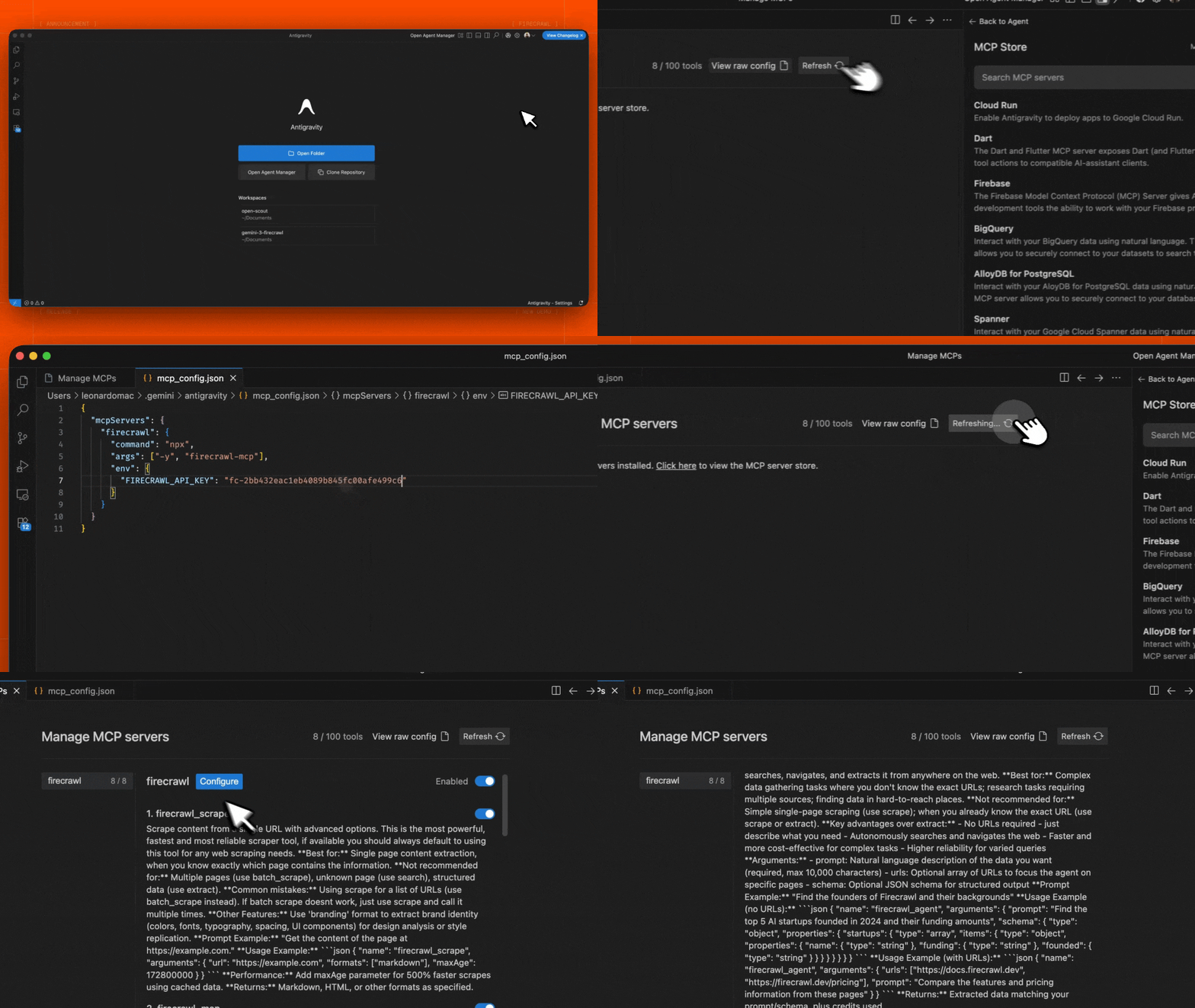 1. 在 Editor 或 Agent Manager 视图中打开 Agent 侧边栏
2. 点击 "..." (More Actions 更多操作) 菜单并选择 **MCP Servers**
3. 选择 **View raw config** 以打开本地的 `mcp_config.json` 文件
4. 添加以下配置:
```json theme={null}
{
"mcpServers": {
"firecrawl": {
"command": "npx",
"args": ["-y", "firecrawl-mcp"],
"env": {
"FIRECRAWL_API_KEY": "YOUR_FIRECRAWL_API_KEY"
}
}
}
}
```
5. 保存文件,然后在 Antigravity MCP 界面中点击 **Refresh** 以查看新工具。
将 `YOUR_FIRECRAWL_API_KEY` 替换为你在 [https://firecrawl.dev/app/api-keys](https://www.firecrawl.dev/app/api-keys) 获取的 API key。
1. 在 Editor 或 Agent Manager 视图中打开 Agent 侧边栏
2. 点击 "..." (More Actions 更多操作) 菜单并选择 **MCP Servers**
3. 选择 **View raw config** 以打开本地的 `mcp_config.json` 文件
4. 添加以下配置:
```json theme={null}
{
"mcpServers": {
"firecrawl": {
"command": "npx",
"args": ["-y", "firecrawl-mcp"],
"env": {
"FIRECRAWL_API_KEY": "YOUR_FIRECRAWL_API_KEY"
}
}
}
}
```
5. 保存文件,然后在 Antigravity MCP 界面中点击 **Refresh** 以查看新工具。
将 `YOUR_FIRECRAWL_API_KEY` 替换为你在 [https://firecrawl.dev/app/api-keys](https://www.firecrawl.dev/app/api-keys) 获取的 API key。
### 在 n8n 中运行
要在 n8n 中连接 Firecrawl MCP 服务器:
1. 在 [https://firecrawl.dev/app/api-keys](https://www.firecrawl.dev/app/api-keys) 获取你的 Firecrawl API 密钥
2. 在你的 n8n 工作流中,添加一个 **AI 代理** 节点
3. 在 AI 代理 配置中,添加一个新的 **Tool**
4. 将工具类型选择为 **MCP Client Tool**
5. 输入 MCP 服务器端点:
```
https://mcp.firecrawl.dev/v2/mcp
```
6. 将 **Server Transport** 设置为 **HTTP Streamable**
7. 将 **Authentication** 设置为 **Bearer**,然后粘贴你的 Firecrawl API 密钥;或者保留为 **None** 以使用免密钥免费档位
8. 在 **Tools to include** 中,你可以选择 **All**、**Selected** 或 **All Except** —— 这会提供对 Firecrawl 工具 (scrape、crawl、map、search、extract 等) 的访问
对于自托管部署,使用 npx 运行 MCP 服务器,并启用 HTTP 传输模式:
```bash theme={null}
env HTTP_STREAMABLE_SERVER=true \
FIRECRAWL_API_KEY=fc-YOUR_API_KEY \
FIRECRAWL_API_URL=YOUR_FIRECRAWL_INSTANCE \
npx -y firecrawl-mcp
```
这会在 `http://localhost:3000/v2/mcp` 上启动服务器,你可以在 n8n 工作流中将其用作端点。需要设置环境变量 `HTTP_STREAMABLE_SERVER=true`,因为 n8n 需要使用 HTTP 传输。
## 配置
### 环境变量
#### 云端和自托管 API
* `FIRECRAWL_API_KEY`:你的 Firecrawl API 密钥
* 使用云端 API (默认) 时必需
* 在使用并配置了 `FIRECRAWL_API_URL` 的自托管实例时可选
* `FIRECRAWL_API_URL` (可选) :自托管实例的自定义 API 端点
* 示例:`https://firecrawl.your-domain.com`
* 如未提供,将使用云端 API (需要提供 API 密钥)
### 配置示例
云端 API 使用方式:
```bash theme={null}
export FIRECRAWL_API_KEY=your-api-key
```
自托管实例:
```bash theme={null}
export FIRECRAWL_API_URL=https://firecrawl.your-domain.com
export FIRECRAWL_API_KEY=your-api-key # 如果你的实例需要身份验证
```
### 在 Claude Desktop 中进行自定义配置
将以下内容添加到你的 `claude_desktop_config.json` 中:
```json theme={null}
{
"mcpServers": {
"mcp-server-firecrawl": {
"command": "npx",
"args": ["-y", "firecrawl-mcp"],
"env": {
"FIRECRAWL_API_KEY": "YOUR_API_KEY_HERE"
}
}
}
}
```
### 托管式 MCP 与本地 MCP
托管式 MCP 服务器针对安全的远程使用进行了优化。本地运行 MCP 服务器时可用的某些选项,在远程使用时会受到限制或不可用:
* 托管式免密钥模式仅开放免密钥支持的工具,并按 IP 实施速率限制。
* 仅限本地的文件读取功能只有在你本地运行 MCP 服务器时才可用。
* 当代理需要访问本地资源时,应通过本地或自托管 MCP 服务器配置 Webhook 和本地文件路径。
### 限流
Firecrawl 会实行限流。使用 API 密钥可获得更高的额度,并访问完整的工具集。
## 可用的工具
### 1. Scrape 工具 (`firecrawl_scrape`)
使用高级选项从单个 URL 提取内容。
```json theme={null}
{
"name": "firecrawl_scrape",
"arguments": {
"url": "https://example.com",
"formats": ["markdown"],
"onlyMainContent": true,
"waitFor": 1000,
"mobile": false,
"includeTags": ["article", "main"],
"excludeTags": ["nav", "footer"],
"skipTlsVerification": false
}
}
```
若要对个人身份识别信息进行脱敏,请在 Scrape 工具参数中加入 `redactPII`。
```json theme={null}
{
"name": "firecrawl_scrape",
"arguments": {
"url": "https://example.com/contact",
"formats": ["markdown"],
"redactPII": true
}
}
```
### 2. Map Tool (`firecrawl_map`)
对网站进行映射,以发现站点上所有已收录的 URL。
```json theme={null}
{
"name": "firecrawl_map",
"arguments": {
"url": "https://example.com",
"search": "blog",
"sitemap": "include",
"includeSubdomains": false,
"limit": 100,
"ignoreQueryParameters": true
}
}
```
#### Map 工具选项:
* `url`: 要映射的网站基础 URL
* `search`: 可选搜索词,用于过滤 URL
* `sitemap`: 控制 sitemap 的使用方式 —— "include"、"skip" 或 "only"
* `includeSubdomains`: 映射时是否包含子域名
* `limit`: 要返回的 URL 最大数量
* `ignoreQueryParameters`: 映射时是否忽略查询参数
**最佳用途:** 在决定抓取哪些页面之前先发现网站上的 URL;查找网站的特定区域。
**返回值:** 在网站上发现的 URL 数组。
### 3. 搜索工具 (`firecrawl_search`)
在网络上进行搜索,并可选地从搜索结果中提取内容。
```json theme={null}
{
"name": "firecrawl_search",
"arguments": {
"query": "您的搜索查询",
"limit": 5,
"location": "United States",
"tbs": "qdr:m",
"scrapeOptions": {
"formats": ["markdown"],
"onlyMainContent": true
}
}
}
```
#### 搜索工具选项:
* `query`:搜索查询字符串 (必需)
* `limit`:返回结果的最大数量
* `location`:搜索结果的地理位置
* `tbs`:按时间过滤的搜索参数 (例如,`qdr:d` 表示过去一天,`qdr:w` 表示过去一周,`qdr:m` 表示过去一个月)
* `filter`:额外的搜索过滤条件
* `sources`:要搜索的来源类型数组 (`web`、`images`、`news`)
* `scrapeOptions`:抓取搜索结果页面时的配置选项
* `enterprise`:企业相关选项数组 (`default`、`anon`、`zdr`)
### 4. 解析工具 (`firecrawl_parse`)
将 PDF、DOCX、XLSX 或 HTML 文档等本地文件解析为整洁、适用于 LLM 的数据。
```json theme={null}
{
"name": "firecrawl_parse",
"arguments": {
"filePath": "/absolute/path/to/report.pdf",
"formats": ["markdown"]
}
}
```
当你通过 `FIRECRAWL_API_URL` 在本地运行 Firecrawl MCP 并连接到 Firecrawl API 实例时,MCP 服务器 可以直接读取 `filePath`,并将文件字节发送到 `/v2/parse`。
当你使用远程托管的 MCP 服务器 时,托管服务器无法读取你本机上的文件。在这种情况下,`firecrawl_parse` 会使用一个同样适用于远程免密钥 URL 的两步交接流程:
1. 使用 `filePath` 调用 `firecrawl_parse`。该工具会返回一条预先填好的上传命令,以及一个包含 `uploadRef` 的 `nextToolCall`。
2. 在能够读取该文件的机器上运行上传命令,然后使用返回的 `uploadRef` 再次调用 `firecrawl_parse`。
上传命令会将文件字节发送到一个短期有效的已签名上传目标。它不包含你的 Firecrawl API 密钥。
#### 解析工具选项:
* `filePath`:要解析文件的本地路径。首次调用时使用此项。
* `uploadRef`:首次托管 MCP 调用返回的引用。上传成功后,第二次调用时使用此项。
* `formats`:输出格式。默认值为 `markdown`。
* `parsers`:解析器控制选项,例如 PDF 解析选项。
* `contentType`:可选的文件 MIME 类型覆盖设置。
* `declaredSizeBytes`:可选的文件大小提示。文件大小上限为 50 MB。
**最适合:** 无法通过公开 URL 访问的本地或非公开文档。
**不建议用于:** 公开文档 URL。请改用 `firecrawl_scrape`;它会自动检测并解析 URL 对应的文档。
### 5. Crawl Tool (`firecrawl_crawl`)
使用高级选项启动一次异步爬取。
```json theme={null}
{
"name": "firecrawl_crawl",
"arguments": {
"url": "https://example.com",
"maxDiscoveryDepth": 2,
"limit": 100,
"allowExternalLinks": false,
"deduplicateSimilarURLs": true
}
}
```
### 6. 检查爬取状态 (`firecrawl_check_crawl_status`)
检查爬取任务的状态。
```json theme={null}
{
"name": "firecrawl_check_crawl_status",
"arguments": {
"id": "550e8400-e29b-41d4-a716-446655440000"
}
}
```
**返回:** 抓取任务的状态和进度,如有则包含结果。
利用 LLM 能力从网页中提取结构化数据,同时支持云端 AI 和自托管 LLM 的提取。
```json theme={null}
{
"name": "firecrawl_extract",
"arguments": {
"urls": ["https://example.com/page1", "https://example.com/page2"],
"prompt": "Extract product information including name, price, and description",
"schema": {
"type": "object",
"properties": {
"name": { "type": "string" },
"price": { "type": "number" },
"description": { "type": "string" }
},
"required": ["name", "price"]
},
"allowExternalLinks": false,
"enableWebSearch": false,
"includeSubdomains": false
}
}
```
响应示例:
```json theme={null}
{
"content": [
{
"type": "text",
"text": {
"name": "Example Product",
"price": 99.99,
"description": "This is an example product description"
}
}
],
"isError": false
}
```
* `urls`: 要从中提取信息的 URL 数组
* `prompt`: 用于 LLM 提取的自定义提示词
* `schema`: 用于结构化数据提取的 JSON schema
* `allowExternalLinks`: 是否允许从外部链接提取
* `enableWebSearch`: 是否启用 Web 搜索以获取额外上下文
* `includeSubdomains`: 提取时是否包含子域名
在使用自托管实例时,提取将使用你配置的 LLM。对于云端 API,则会使用 Firecrawl 托管的 LLM 服务。
### 8. Agent Tool (`firecrawl_agent`)
自主 Web 研究智能体,可以独立浏览互联网、搜索信息、在页面之间导航,并根据你的查询提取结构化数据。该工具以异步方式运行 —— 会立即返回一个 job ID,你需要轮询 `firecrawl_agent_status` 以检查任务何时完成并获取结果。
```json theme={null}
{
"name": "firecrawl_agent",
"arguments": {
"prompt": "Find the top 5 AI startups founded in 2024 and their funding amounts",
"schema": {
"type": "object",
"properties": {
"startups": {
"type": "array",
"items": {
"type": "object",
"properties": {
"name": { "type": "string" },
"funding": { "type": "string" },
"founded": { "type": "string" }
}
}
}
}
}
}
}
```
你也可以提供特定的 URL,让 agent 重点处理这些 URL:
```json theme={null}
{
"name": "firecrawl_agent",
"arguments": {
"urls": ["https://docs.firecrawl.dev", "https://firecrawl.dev/pricing"],
"prompt": "Compare the features and pricing information from these pages"
}
}
```
#### Agent 工具选项:
* `prompt`: 对所需数据的自然语言描述 (必填,最多 10,000 个字符)
* `urls`: 可选的 URL 数组,用于让 agent 聚焦在特定页面
* `schema`: 可选的 JSON schema,用于结构化输出
**最适合:** 在你不知道具体 URL 的复杂研究任务;多来源数据收集;查找分散在整个网络上的信息;从严重依赖 JavaScript、常规抓取失效的 SPA 中提取数据。
**返回:** 用于检查任务状态的 Job ID。使用 `firecrawl_agent_status` 轮询获取结果。
### 9. 检查 Agent 状态 (`firecrawl_agent_status`)
检查代理任务的状态,并在完成后获取结果。每隔 15–30 秒轮询一次,在持续轮询至少 2–3 分钟后再认为请求失败。
```json theme={null}
{
"name": "firecrawl_agent_status",
"arguments": {
"id": "550e8400-e29b-41d4-a716-446655440000"
}
}
```
#### Agent 状态选项:
* `id`: `firecrawl_agent` 返回的 Agent 任务 ID (必需)
**可能的状态:**
* `processing`: Agent 仍在执行任务 —— 继续轮询
* `completed`: 任务已完成 —— 响应中包含提取的数据
* `failed`: 发生错误
**返回:** Agent 任务的状态、进度,以及 (如果已完成) 结果。
### 10. 与页面交互 (`firecrawl_interact`)
在实时浏览器会话中与页面交互:点击按钮、填写表单、提取动态内容,或进一步导航。
使用以下两种定位模式之一:
* 传入 `url`,即可在一次 MCP 调用中打开一个新页面并与之交互。
* 传入之前 `firecrawl_scrape` 调用返回的 `scrapeId`,即可复用已加载的页面。
不要同时传入 `url` 和 `scrapeId`。请提供 `prompt` 或 `code` 二者之一。`scrapeOptions` 只能在 `url` 模式下使用。
**URL 模式示例:**
```json theme={null}
{
"name": "firecrawl_interact",
"arguments": {
"url": "https://example.com/products",
"prompt": "Click on the first product and tell me its price"
}
}
```
**抓取复用示例:**
```json theme={null}
{
"name": "firecrawl_interact",
"arguments": {
"scrapeId": "scrape-id-from-previous-scrape",
"prompt": "Click the Sign In button"
}
}
```
#### 交互工具选项:
* `url`:要交互的页面;会为你打开会话。使用此项或 `scrapeId`。
- `scrapeId`:先前 `firecrawl_scrape` 调用返回的抓取任务 ID。使用此项或 `url`。
- `prompt`:用于描述要执行操作的自然语言指令 (提供 `prompt` 或 `code`)
- `code`:在浏览器会话中执行的代码 (提供 `code` 或 `prompt`)
- `language`:`bash`、`python` 或 `node` (可选,默认值为 `node`,仅在使用 `code` 时生效)
- `timeout`:执行超时时间 (秒) ,1–300 (可选,默认值为 30)
* `scrapeOptions`:仅在 `url` 模式下使用的可选抓取控制选项。
**最适合:** 在单个页面上执行多步骤工作流——例如站内搜索、逐个点击结果、填写表单,以及提取需要交互的数据。
**返回:** 交互结果,包括输出和实时查看 URL。
### 11. 停止交互会话 (`firecrawl_interact_stop`)
停止已抓取页面的交互会话。完成交互后,请调用此操作以释放资源。
```json theme={null}
{
"name": "firecrawl_interact_stop",
"arguments": {
"scrapeId": "scrape-id-from-previous-scrape"
}
}
```
#### 交互停止选项:
* `scrapeId`:要停止的会话的 scrape ID (必填)
**返回:** 确认会话已停止。
## 日志系统
服务器提供全面的日志记录:
* 操作状态与进度
* 性能指标
* 额度使用监控
* 速率限制跟踪
* 错误情况
示例日志消息:
```
[INFO] Firecrawl MCP Server initialized successfully
[INFO] 开始抓取 URL:https://example.com
[INFO] Starting crawl for URL: https://example.com
[WARNING] Credit usage has reached warning threshold
[ERROR] Rate limit exceeded, retrying in 2s...
```
## 错误处理
服务器提供完善的错误处理能力:
* 对临时性错误进行自动重试
* 带退避策略的限流处理
* 详细的错误信息
* 额度使用预警
* 网络健壮性
示例错误响应:
```json theme={null}
{
"content": [
{
"type": "text",
"text": "错误:超出速率限制。2 秒后重试..."
}
],
"isError": true
}
```
## 开发
```bash theme={null}
# 安装依赖项
npm install
# 构建项目
npm run build
# 运行测试
npm test
```
### 参与贡献
1. Fork 本仓库
2. 创建你的功能分支
3. 运行测试:`npm test`
4. 提交一个 Pull Request
### 致谢贡献者
感谢 [@vrknetha](https://github.com/vrknetha)、[@cawstudios](https://caw.tech) 完成初始实现!
感谢 MCP.so 和 Klavis AI 提供托管支持,亦感谢 [@gstarwd](https://github.com/gstarwd)、[@xiangkaiz](https://github.com/xiangkaiz) 与 [@zihaolin96](https://github.com/zihaolin96) 集成我们的服务器。
## 许可
MIT 许可 — 详情请查看 LICENSE 文件