> ## Documentation Index
> Fetch the complete documentation index at: https://docs.firecrawl.dev/llms.txt
> Use this file to discover all available pages before exploring further.
# Set up Firecrawl MCP in a client
> Client-specific configuration for the hosted and local Firecrawl MCP server.
Start with [Connect Firecrawl MCP](/mcp-server/connect) to choose account OAuth, unattended API-key access, or keyless access. These client-specific examples use that same mode-aware contract.
## Running on Cursor
Install the hosted keyless server in one click (no API key required):
 Or add it to `~/.cursor/mcp.json` manually:
```json theme={null}
{
"mcpServers": {
"firecrawl": {
"url": "https://mcp.firecrawl.dev/v2/mcp"
}
}
}
```
### Running locally with an API key
Note: Requires Cursor version 0.45.6+
For the most up-to-date configuration instructions, please refer to the official Cursor documentation on configuring MCP servers:
[Cursor MCP Server Configuration Guide](https://cursor.com/docs/context/mcp)
To configure Firecrawl MCP in Cursor **v0.48.6**
1. Open Cursor Settings
2. Go to Features > MCP Servers
3. Click "+ Add new global MCP server"
4. Enter the following code:
```json theme={null}
{
"mcpServers": {
"firecrawl-mcp": {
"command": "npx",
"args": ["-y", "firecrawl-mcp"],
"env": {
"FIRECRAWL_API_KEY": "YOUR-API-KEY"
}
}
}
}
```
To configure Firecrawl MCP in Cursor **v0.45.6**
1. Open Cursor Settings
2. Go to Features > MCP Servers
3. Click "+ Add New MCP Server"
4. Enter the following:
* Name: "firecrawl-mcp" (or your preferred name)
* Type: "command"
* Command: `env FIRECRAWL_API_KEY=your-api-key npx -y firecrawl-mcp@3.22.4`
> If you are using Windows and are running into issues, try `cmd /c "set FIRECRAWL_API_KEY=your-api-key && npx -y firecrawl-mcp@3.22.4"`
Replace `your-api-key` with your Firecrawl API key. If you don't have one yet, you can create an account and get it from [https://www.firecrawl.dev/app/api-keys](https://www.firecrawl.dev/app/api-keys)
After adding, refresh the MCP server list to see the new tools. The Composer Agent will automatically use Firecrawl MCP when appropriate, but you can explicitly request it by describing your web data needs. Access the Composer via Command+L (Mac), select "Agent" next to the submit button, and enter your query.
## Running on Windsurf
Add this to your `./codeium/windsurf/model_config.json`:
```json theme={null}
{
"mcpServers": {
"mcp-server-firecrawl": {
"command": "npx",
"args": ["-y", "firecrawl-mcp"],
"env": {
"FIRECRAWL_API_KEY": "YOUR_API_KEY"
}
}
}
}
```
## Running with Streamable HTTP Mode
To run the server using streamable HTTP transport locally instead of the default stdio transport:
```bash theme={null}
env HTTP_STREAMABLE_SERVER=true FIRECRAWL_API_KEY=fc-YOUR_API_KEY npx -y firecrawl-mcp@3.22.4
```
Use the url: [http://localhost:3000/v2/mcp](http://localhost:3000/v2/mcp) locally, or the hosted [https://mcp.firecrawl.dev/v2/mcp](https://mcp.firecrawl.dev/v2/mcp)
## Installing via Smithery (Legacy)
To install Firecrawl for Claude Desktop automatically via [Smithery](https://smithery.ai/server/@mendableai/mcp-server-firecrawl):
```bash theme={null}
npx -y @smithery/cli install @mendableai/mcp-server-firecrawl --client claude
```
## Running on VS Code
For one-click installation, click one of the install buttons below\...
[](https://insiders.vscode.dev/redirect/mcp/install?name=firecrawl\&inputs=%5B%7B%22type%22%3A%22promptString%22%2C%22id%22%3A%22apiKey%22%2C%22description%22%3A%22Firecrawl%20API%20Key%22%2C%22password%22%3Atrue%7D%5D\&config=%7B%22command%22%3A%22npx%22%2C%22args%22%3A%5B%22-y%22%2C%22firecrawl-mcp%22%5D%2C%22env%22%3A%7B%22FIRECRAWL_API_KEY%22%3A%22%24%7Binput%3AapiKey%7D%22%7D%7D) [](https://insiders.vscode.dev/redirect/mcp/install?name=firecrawl\&inputs=%5B%7B%22type%22%3A%22promptString%22%2C%22id%22%3A%22apiKey%22%2C%22description%22%3A%22Firecrawl%20API%20Key%22%2C%22password%22%3Atrue%7D%5D\&config=%7B%22command%22%3A%22npx%22%2C%22args%22%3A%5B%22-y%22%2C%22firecrawl-mcp%22%5D%2C%22env%22%3A%7B%22FIRECRAWL_API_KEY%22%3A%22%24%7Binput%3AapiKey%7D%22%7D%7D\&quality=insiders)
For manual installation, add the following JSON block to your User Settings (JSON) file in VS Code. You can do this by pressing `Ctrl + Shift + P` and typing `Preferences: Open User Settings (JSON)`.
```json theme={null}
{
"mcp": {
"inputs": [
{
"type": "promptString",
"id": "apiKey",
"description": "Firecrawl API Key",
"password": true
}
],
"servers": {
"firecrawl": {
"command": "npx",
"args": ["-y", "firecrawl-mcp"],
"env": {
"FIRECRAWL_API_KEY": "${input:apiKey}"
}
}
}
}
}
```
Optionally, you can add it to a file called `.vscode/mcp.json` in your workspace. This will allow you to share the configuration with others:
```json theme={null}
{
"inputs": [
{
"type": "promptString",
"id": "apiKey",
"description": "Firecrawl API Key",
"password": true
}
],
"servers": {
"firecrawl": {
"command": "npx",
"args": ["-y", "firecrawl-mcp"],
"env": {
"FIRECRAWL_API_KEY": "${input:apiKey}"
}
}
}
}
```
**Note:** Some users have reported issues when adding the MCP server to VS Code due to how it validates JSON with an outdated schema format ([microsoft/vscode#155379](https://github.com/microsoft/vscode/issues/155379)).
This affects several MCP tools, including Firecrawl.
**Workaround:** Disable JSON validation in VS Code to allow the MCP server to load properly.
See reference: [directus/directus#25906 (comment)](https://github.com/directus/directus/issues/25906#issuecomment-3369169513).
The MCP server still works fine when invoked via other extensions, but the issue occurs specifically when registering it directly in the MCP server list. We plan to add guidance once VS Code updates their schema validation.
## Running on Claude Desktop
For an interactive account connection, add the account endpoint and complete the browser OAuth flow:
```json theme={null}
{
"mcpServers": {
"firecrawl": {
"url": "https://mcp.firecrawl.dev/v2/mcp-oauth"
}
}
}
```
For an unattended or API-key-backed configuration, use `https://mcp.firecrawl.dev/v2/mcp` with an `Authorization: Bearer ` header instead.
If you get a "Couldn't reach the MCP server" error, your Claude Desktop version may not support streamable HTTP transport. Use the local npx approach instead (requires [Node.js](https://nodejs.org)):
```json theme={null}
{
"mcpServers": {
"firecrawl": {
"command": "npx",
"args": ["-y", "firecrawl-mcp"],
"env": {
"FIRECRAWL_API_KEY": "YOUR_API_KEY"
}
}
}
}
```
If you see a `spawn npx ENOENT` error, Node.js is not installed or not in your system PATH. Install Node.js from [nodejs.org](https://nodejs.org) (LTS version), then fully restart Claude Desktop. On Windows, you can also run `where npx` in Command Prompt and use the full path (e.g. `C:\\Program Files\\nodejs\\npx.cmd`) as the `command` value.
## Running on Claude Code
Add the Firecrawl MCP server using the Claude Code CLI. You can use the remote hosted URL or run locally:
```bash theme={null}
# Interactive account connection (recommended)
claude mcp add --transport http firecrawl https://mcp.firecrawl.dev/v2/mcp-oauth
# For an unattended API-key configuration, use an Authorization header
claude mcp add --transport http firecrawl https://mcp.firecrawl.dev/v2/mcp --header "Authorization: Bearer "
# Or run locally via npx
claude mcp add firecrawl -e FIRECRAWL_API_KEY=fc-your-api-key -- npx -y firecrawl-mcp@3.22.4
```
## Running on Google Antigravity
Google Antigravity allows you to configure MCP servers directly through its Agent interface.
Or add it to `~/.cursor/mcp.json` manually:
```json theme={null}
{
"mcpServers": {
"firecrawl": {
"url": "https://mcp.firecrawl.dev/v2/mcp"
}
}
}
```
### Running locally with an API key
Note: Requires Cursor version 0.45.6+
For the most up-to-date configuration instructions, please refer to the official Cursor documentation on configuring MCP servers:
[Cursor MCP Server Configuration Guide](https://cursor.com/docs/context/mcp)
To configure Firecrawl MCP in Cursor **v0.48.6**
1. Open Cursor Settings
2. Go to Features > MCP Servers
3. Click "+ Add new global MCP server"
4. Enter the following code:
```json theme={null}
{
"mcpServers": {
"firecrawl-mcp": {
"command": "npx",
"args": ["-y", "firecrawl-mcp"],
"env": {
"FIRECRAWL_API_KEY": "YOUR-API-KEY"
}
}
}
}
```
To configure Firecrawl MCP in Cursor **v0.45.6**
1. Open Cursor Settings
2. Go to Features > MCP Servers
3. Click "+ Add New MCP Server"
4. Enter the following:
* Name: "firecrawl-mcp" (or your preferred name)
* Type: "command"
* Command: `env FIRECRAWL_API_KEY=your-api-key npx -y firecrawl-mcp@3.22.4`
> If you are using Windows and are running into issues, try `cmd /c "set FIRECRAWL_API_KEY=your-api-key && npx -y firecrawl-mcp@3.22.4"`
Replace `your-api-key` with your Firecrawl API key. If you don't have one yet, you can create an account and get it from [https://www.firecrawl.dev/app/api-keys](https://www.firecrawl.dev/app/api-keys)
After adding, refresh the MCP server list to see the new tools. The Composer Agent will automatically use Firecrawl MCP when appropriate, but you can explicitly request it by describing your web data needs. Access the Composer via Command+L (Mac), select "Agent" next to the submit button, and enter your query.
## Running on Windsurf
Add this to your `./codeium/windsurf/model_config.json`:
```json theme={null}
{
"mcpServers": {
"mcp-server-firecrawl": {
"command": "npx",
"args": ["-y", "firecrawl-mcp"],
"env": {
"FIRECRAWL_API_KEY": "YOUR_API_KEY"
}
}
}
}
```
## Running with Streamable HTTP Mode
To run the server using streamable HTTP transport locally instead of the default stdio transport:
```bash theme={null}
env HTTP_STREAMABLE_SERVER=true FIRECRAWL_API_KEY=fc-YOUR_API_KEY npx -y firecrawl-mcp@3.22.4
```
Use the url: [http://localhost:3000/v2/mcp](http://localhost:3000/v2/mcp) locally, or the hosted [https://mcp.firecrawl.dev/v2/mcp](https://mcp.firecrawl.dev/v2/mcp)
## Installing via Smithery (Legacy)
To install Firecrawl for Claude Desktop automatically via [Smithery](https://smithery.ai/server/@mendableai/mcp-server-firecrawl):
```bash theme={null}
npx -y @smithery/cli install @mendableai/mcp-server-firecrawl --client claude
```
## Running on VS Code
For one-click installation, click one of the install buttons below\...
[](https://insiders.vscode.dev/redirect/mcp/install?name=firecrawl\&inputs=%5B%7B%22type%22%3A%22promptString%22%2C%22id%22%3A%22apiKey%22%2C%22description%22%3A%22Firecrawl%20API%20Key%22%2C%22password%22%3Atrue%7D%5D\&config=%7B%22command%22%3A%22npx%22%2C%22args%22%3A%5B%22-y%22%2C%22firecrawl-mcp%22%5D%2C%22env%22%3A%7B%22FIRECRAWL_API_KEY%22%3A%22%24%7Binput%3AapiKey%7D%22%7D%7D) [](https://insiders.vscode.dev/redirect/mcp/install?name=firecrawl\&inputs=%5B%7B%22type%22%3A%22promptString%22%2C%22id%22%3A%22apiKey%22%2C%22description%22%3A%22Firecrawl%20API%20Key%22%2C%22password%22%3Atrue%7D%5D\&config=%7B%22command%22%3A%22npx%22%2C%22args%22%3A%5B%22-y%22%2C%22firecrawl-mcp%22%5D%2C%22env%22%3A%7B%22FIRECRAWL_API_KEY%22%3A%22%24%7Binput%3AapiKey%7D%22%7D%7D\&quality=insiders)
For manual installation, add the following JSON block to your User Settings (JSON) file in VS Code. You can do this by pressing `Ctrl + Shift + P` and typing `Preferences: Open User Settings (JSON)`.
```json theme={null}
{
"mcp": {
"inputs": [
{
"type": "promptString",
"id": "apiKey",
"description": "Firecrawl API Key",
"password": true
}
],
"servers": {
"firecrawl": {
"command": "npx",
"args": ["-y", "firecrawl-mcp"],
"env": {
"FIRECRAWL_API_KEY": "${input:apiKey}"
}
}
}
}
}
```
Optionally, you can add it to a file called `.vscode/mcp.json` in your workspace. This will allow you to share the configuration with others:
```json theme={null}
{
"inputs": [
{
"type": "promptString",
"id": "apiKey",
"description": "Firecrawl API Key",
"password": true
}
],
"servers": {
"firecrawl": {
"command": "npx",
"args": ["-y", "firecrawl-mcp"],
"env": {
"FIRECRAWL_API_KEY": "${input:apiKey}"
}
}
}
}
```
**Note:** Some users have reported issues when adding the MCP server to VS Code due to how it validates JSON with an outdated schema format ([microsoft/vscode#155379](https://github.com/microsoft/vscode/issues/155379)).
This affects several MCP tools, including Firecrawl.
**Workaround:** Disable JSON validation in VS Code to allow the MCP server to load properly.
See reference: [directus/directus#25906 (comment)](https://github.com/directus/directus/issues/25906#issuecomment-3369169513).
The MCP server still works fine when invoked via other extensions, but the issue occurs specifically when registering it directly in the MCP server list. We plan to add guidance once VS Code updates their schema validation.
## Running on Claude Desktop
For an interactive account connection, add the account endpoint and complete the browser OAuth flow:
```json theme={null}
{
"mcpServers": {
"firecrawl": {
"url": "https://mcp.firecrawl.dev/v2/mcp-oauth"
}
}
}
```
For an unattended or API-key-backed configuration, use `https://mcp.firecrawl.dev/v2/mcp` with an `Authorization: Bearer ` header instead.
If you get a "Couldn't reach the MCP server" error, your Claude Desktop version may not support streamable HTTP transport. Use the local npx approach instead (requires [Node.js](https://nodejs.org)):
```json theme={null}
{
"mcpServers": {
"firecrawl": {
"command": "npx",
"args": ["-y", "firecrawl-mcp"],
"env": {
"FIRECRAWL_API_KEY": "YOUR_API_KEY"
}
}
}
}
```
If you see a `spawn npx ENOENT` error, Node.js is not installed or not in your system PATH. Install Node.js from [nodejs.org](https://nodejs.org) (LTS version), then fully restart Claude Desktop. On Windows, you can also run `where npx` in Command Prompt and use the full path (e.g. `C:\\Program Files\\nodejs\\npx.cmd`) as the `command` value.
## Running on Claude Code
Add the Firecrawl MCP server using the Claude Code CLI. You can use the remote hosted URL or run locally:
```bash theme={null}
# Interactive account connection (recommended)
claude mcp add --transport http firecrawl https://mcp.firecrawl.dev/v2/mcp-oauth
# For an unattended API-key configuration, use an Authorization header
claude mcp add --transport http firecrawl https://mcp.firecrawl.dev/v2/mcp --header "Authorization: Bearer "
# Or run locally via npx
claude mcp add firecrawl -e FIRECRAWL_API_KEY=fc-your-api-key -- npx -y firecrawl-mcp@3.22.4
```
## Running on Google Antigravity
Google Antigravity allows you to configure MCP servers directly through its Agent interface.
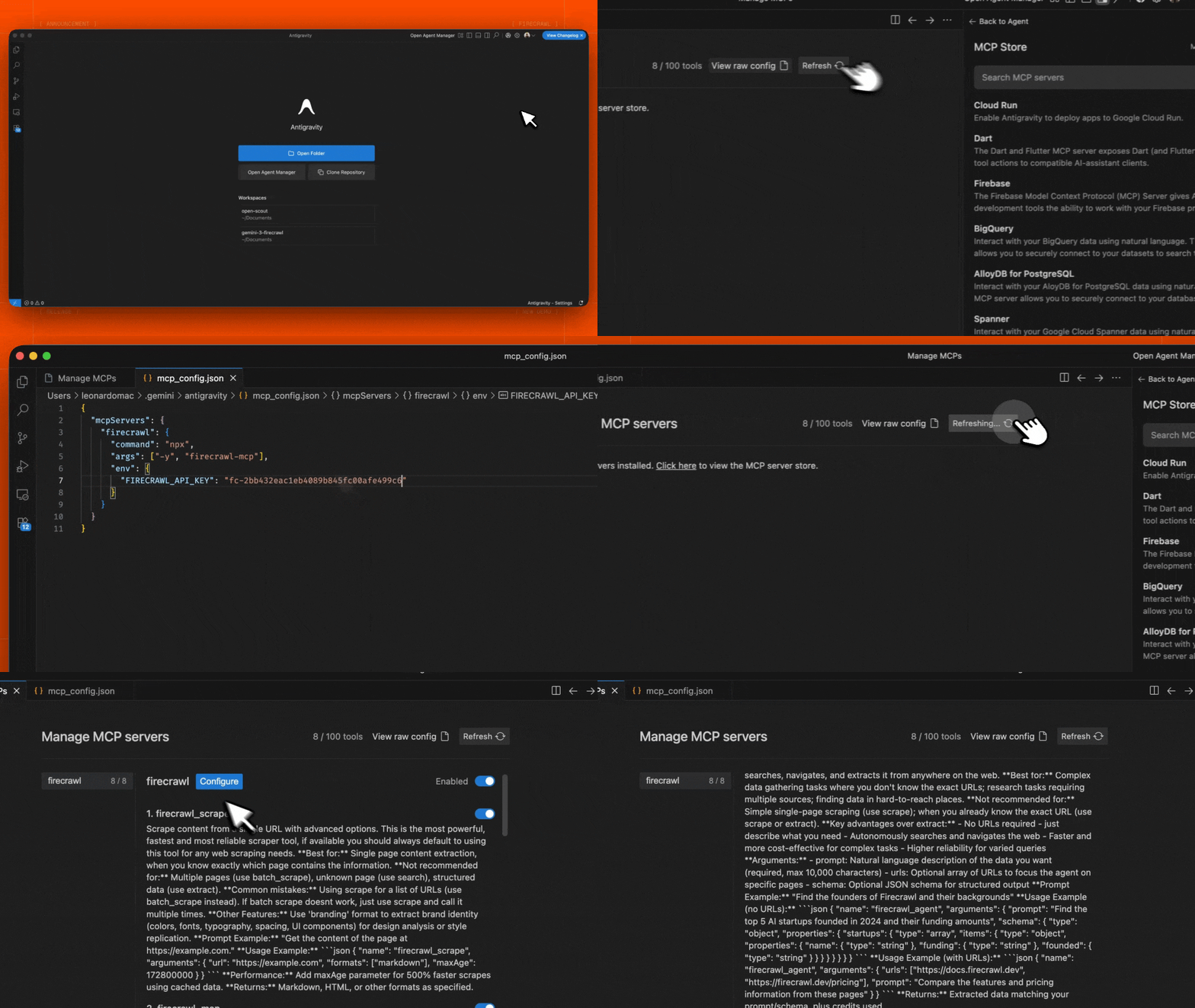 1. Open the Agent sidebar in the Editor or the Agent Manager view
2. Click the "..." (More Actions) menu and select **MCP Servers**
3. Select **View raw config** to open your local `mcp_config.json` file
4. Add the following configuration:
```json theme={null}
{
"mcpServers": {
"firecrawl": {
"command": "npx",
"args": ["-y", "firecrawl-mcp"],
"env": {
"FIRECRAWL_API_KEY": "YOUR_FIRECRAWL_API_KEY"
}
}
}
}
```
5. Save the file and click **Refresh** in the Antigravity MCP interface to see the new tools
Replace `YOUR_FIRECRAWL_API_KEY` with your API key from [https://firecrawl.dev/app/api-keys](https://www.firecrawl.dev/app/api-keys).
## Running on n8n
To connect the Firecrawl MCP server in n8n:
1. Get your Firecrawl API key from [https://firecrawl.dev/app/api-keys](https://www.firecrawl.dev/app/api-keys)
2. In your n8n workflow, add an **AI Agent** node
3. In the AI Agent configuration, add a new **Tool**
4. Select **MCP Client Tool** as the tool type
5. Enter the MCP server Endpoint:
```
https://mcp.firecrawl.dev/v2/mcp
```
6. Set **Server Transport** to **HTTP Streamable**
7. Set **Authentication** to **Bearer** and paste your Firecrawl API key, or leave it as **None** to use the keyless free tier
8. For **Tools to include**, you can select **All**, **Selected**, or **All Except** - this will expose the Firecrawl tools (scrape, crawl, map, search, extract, etc.)
For self-hosted deployments, run the MCP server with npx and enable HTTP transport mode:
```bash theme={null}
env HTTP_STREAMABLE_SERVER=true \
FIRECRAWL_API_KEY=fc-YOUR_API_KEY \
FIRECRAWL_API_URL=YOUR_FIRECRAWL_INSTANCE \
npx -y firecrawl-mcp@3.22.4
```
This will start the server on `http://localhost:3000/v2/mcp` which you can use in your n8n workflow as Endpoint. The `HTTP_STREAMABLE_SERVER=true` environment variable is required since n8n needs HTTP transport.
1. Open the Agent sidebar in the Editor or the Agent Manager view
2. Click the "..." (More Actions) menu and select **MCP Servers**
3. Select **View raw config** to open your local `mcp_config.json` file
4. Add the following configuration:
```json theme={null}
{
"mcpServers": {
"firecrawl": {
"command": "npx",
"args": ["-y", "firecrawl-mcp"],
"env": {
"FIRECRAWL_API_KEY": "YOUR_FIRECRAWL_API_KEY"
}
}
}
}
```
5. Save the file and click **Refresh** in the Antigravity MCP interface to see the new tools
Replace `YOUR_FIRECRAWL_API_KEY` with your API key from [https://firecrawl.dev/app/api-keys](https://www.firecrawl.dev/app/api-keys).
## Running on n8n
To connect the Firecrawl MCP server in n8n:
1. Get your Firecrawl API key from [https://firecrawl.dev/app/api-keys](https://www.firecrawl.dev/app/api-keys)
2. In your n8n workflow, add an **AI Agent** node
3. In the AI Agent configuration, add a new **Tool**
4. Select **MCP Client Tool** as the tool type
5. Enter the MCP server Endpoint:
```
https://mcp.firecrawl.dev/v2/mcp
```
6. Set **Server Transport** to **HTTP Streamable**
7. Set **Authentication** to **Bearer** and paste your Firecrawl API key, or leave it as **None** to use the keyless free tier
8. For **Tools to include**, you can select **All**, **Selected**, or **All Except** - this will expose the Firecrawl tools (scrape, crawl, map, search, extract, etc.)
For self-hosted deployments, run the MCP server with npx and enable HTTP transport mode:
```bash theme={null}
env HTTP_STREAMABLE_SERVER=true \
FIRECRAWL_API_KEY=fc-YOUR_API_KEY \
FIRECRAWL_API_URL=YOUR_FIRECRAWL_INSTANCE \
npx -y firecrawl-mcp@3.22.4
```
This will start the server on `http://localhost:3000/v2/mcp` which you can use in your n8n workflow as Endpoint. The `HTTP_STREAMABLE_SERVER=true` environment variable is required since n8n needs HTTP transport.