> ## Documentation Index
> Fetch the complete documentation index at: https://docs.firecrawl.dev/llms.txt
> Use this file to discover all available pages before exploring further.
# Firecrawl MCP Server
> Model Context Protocol を通じて Firecrawl の API を利用する
[Firecrawl](https://github.com/firecrawl/firecrawl) を統合し、ウェブの検索、スクレイピング、操作を可能にする Model Context Protocol (MCP) サーバー実装です。MCP サーバーはオープンソースで、[GitHub](https://github.com/firecrawl/firecrawl-mcp-server) から入手できます。
## 機能
* Webを検索してページ全体のコンテンツを取得
* 任意のURLをスクレイピングして、クリーンな構造化データを取得
* PDF、DOCX、XLSX、HTML などのローカルファイルを解析
* ページ上でInteract — クリック、移動、操作
* 自律エージェントによる深層リサーチ
* クラウドおよびセルフホストに対応
* Streamable HTTPサポート
## インストール
リモートホストのURLを使用するか、サーバーをローカルで実行します。Firecrawl APIキーは [https://firecrawl.dev/app/api-keys](https://www.firecrawl.dev/app/api-keys) から取得してください。
**APIキーがありませんか?** リモートのキー不要のFreeティアを利用するには `https://mcp.firecrawl.dev/v2/mcp` に接続してください。これは無料で、IPごとにレート制限があります。現在利用可能なキー不要ツールの一覧については [Rate Limits](/ja/rate-limits#keyless-no-api-key) を参照してください。`FIRECRAWL_API_KEY` を設定すると、すべてのMCPツールが使えるようになり、より高い上限も利用できます。
### リモートホストのURL
APIキーなしで接続して、リモートのAPIキー不要のFreeティアを利用して始めることができます (IPごとにレート制限あり。現在のツール一覧は [Rate Limits](/ja/rate-limits#keyless-no-api-key) を参照してください) :
```bash theme={null}
https://mcp.firecrawl.dev/v2/mcp
```
API key を使用する場合は、`Authorization` ヘッダーとして送信すると、すべてのツールと、より高い上限を利用できるようになります:
```json theme={null}
{
"mcpServers": {
"firecrawl": {
"url": "https://mcp.firecrawl.dev/v2/mcp",
"headers": {
"Authorization": "Bearer fc-YOUR_API_KEY"
}
}
}
}
```
### npx での実行
```bash theme={null}
env FIRECRAWL_API_KEY=fc-YOUR_API_KEY npx -y firecrawl-mcp
```
### 手動インストール
```bash theme={null}
npm install -g firecrawl-mcp
```
### Cursor 上での実行
ホスト型のキー不要サーバーをワンクリックでインストールできます (API キーは不要です) :
 または、`~/.cursor/mcp.json` に手動で追加します:
```json theme={null}
{
"mcpServers": {
"firecrawl": {
"url": "https://mcp.firecrawl.dev/v2/mcp"
}
}
}
```
または、`~/.cursor/mcp.json` に手動で追加します:
```json theme={null}
{
"mcpServers": {
"firecrawl": {
"url": "https://mcp.firecrawl.dev/v2/mcp"
}
}
}
```
#### API キーを使用してローカルで実行
注意: Cursor バージョン 0.45.6 以上が必要です
最新の設定手順は、MCP サーバーの構成に関する Cursor 公式ドキュメントをご参照ください:
[Cursor MCP Server Configuration Guide](https://cursor.com/docs/context/mcp)
Cursor **v0.48.6** で Firecrawl MCP を構成するには
1. Cursor Settings を開く
2. Features > MCP Servers に移動
3. 「+ Add new global MCP server」をクリック
4. 次のコードを入力:
```json theme={null}
{
"mcpServers": {
"firecrawl-mcp": {
"command": "npx",
"args": ["-y", "firecrawl-mcp"],
"env": {
"FIRECRAWL_API_KEY": "YOUR-API-KEY"
}
}
}
}
```
Cursor **v0.45.6** で Firecrawl MCP を構成するには
1. Cursor Settings を開く
2. Features > MCP Servers に移動
3. 「+ Add New MCP Server」をクリック
4. 次を入力:
* Name: "firecrawl-mcp" (任意の名称でも可)
* Type: "command"
* Command: `env FIRECRAWL_API_KEY=your-api-key npx -y firecrawl-mcp`
> Windows を使用していて問題が発生する場合は、`cmd /c "set FIRECRAWL_API_KEY=your-api-key && npx -y firecrawl-mcp"` を試してください
`your-api-key` をお持ちの Firecrawl API キーに置き換えてください。まだお持ちでない場合はアカウントを作成し、[https://www.firecrawl.dev/app/api-keys](https://www.firecrawl.dev/app/api-keys) から取得できます。
追加後、MCP サーバー一覧を更新して新しいツールを確認してください。Composer Agent は適宜 Firecrawl MCP を自動的に使用しますが、ウェブデータの要件を記述することで明示的にリクエストすることも可能です。Command+L (Mac) で Composer を開き、送信ボタン横の「Agent」を選択してクエリを入力します。
### Windsurf での実行
次を `./codeium/windsurf/model_config.json` に追加します:
```json theme={null}
{
"mcpServers": {
"mcp-server-firecrawl": {
"command": "npx",
"args": ["-y", "firecrawl-mcp"],
"env": {
"FIRECRAWL_API_KEY": "YOUR_API_KEY"
}
}
}
}
```
### Streamable HTTP モードでの実行
デフォルトの stdio トランスポートではなく、ローカル環境で Streamable HTTP トランスポートを使ってサーバーを実行するには、次のようにします:
```bash theme={null}
env HTTP_STREAMABLE_SERVER=true FIRECRAWL_API_KEY=fc-YOUR_API_KEY npx -y firecrawl-mcp
```
次のURLを使用してください:[http://localhost:3000/v2/mcp、またはホスト版の](http://localhost:3000/v2/mcp、またはホスト版の) [https://mcp.firecrawl.dev/v2/mcp](https://mcp.firecrawl.dev/v2/mcp)
### Smithery 経由でのインストール (レガシー)
[Smithery](https://smithery.ai/server/@mendableai/mcp-server-firecrawl) を使って Claude Desktop 用の Firecrawl を自動インストールするには:
```bash theme={null}
npx -y @smithery/cli install @mendableai/mcp-server-firecrawl --client claude
```
### VS Code での実行
ワンクリックでインストールするには、以下のインストールボタンのいずれかをクリックしてください。
[](https://insiders.vscode.dev/redirect/mcp/install?name=firecrawl\&inputs=%5B%7B%22type%22%3A%22promptString%22%2C%22id%22%3A%22apiKey%22%2C%22description%22%3A%22Firecrawl%20API%20Key%22%2C%22password%22%3Atrue%7D%5D\&config=%7B%22command%22%3A%22npx%22%2C%22args%22%3A%5B%22-y%22%2C%22firecrawl-mcp%22%5D%2C%22env%22%3A%7B%22FIRECRAWL_API_KEY%22%3A%22%24%7Binput%3AapiKey%7D%22%7D%7D) [](https://insiders.vscode.dev/redirect/mcp/install?name=firecrawl\&inputs=%5B%7B%22type%22%3A%22promptString%22%2C%22id%22%3A%22apiKey%22%2C%22description%22%3A%22Firecrawl%20API%20Key%22%2C%22password%22%3Atrue%7D%5D\&config=%7B%22command%22%3A%22npx%22%2C%22args%22%3A%5B%22-y%22%2C%22firecrawl-mcp%22%5D%2C%22env%22%3A%7B%22FIRECRAWL_API_KEY%22%3A%22%24%7Binput%3AapiKey%7D%22%7D%7D\&quality=insiders)
手動でインストールするには、VS Code のユーザー設定 (JSON) ファイルに次の JSON ブロックを追加します。`Ctrl + Shift + P` を押し、`Preferences: Open User Settings (JSON)` と入力して開きます。
```json theme={null}
{
"mcp": {
"inputs": [
{
"type": "promptString",
"id": "apiKey",
"description": "Firecrawl APIキー",
"password": true
}
],
"servers": {
"firecrawl": {
"command": "npx",
"args": ["-y", "firecrawl-mcp"],
"env": {
"FIRECRAWL_API_KEY": "${input:apiKey}"
}
}
}
}
}
```
必要に応じて、ワークスペース内の `.vscode/mcp.json` ファイルにこれを追加できます。そうすると、この設定を他の人と共有できるようになります。
```json theme={null}
{
"inputs": [
{
"type": "promptString",
"id": "apiKey",
"description": "Firecrawl API Key",
"password": true
}
],
"servers": {
"firecrawl": {
"command": "npx",
"args": ["-y", "firecrawl-mcp"],
"env": {
"FIRECRAWL_API_KEY": "${input:apiKey}"
}
}
}
}
```
**注意:** 一部のユーザーから、古いスキーマ形式で JSON を検証している VS Code の仕様が原因で、MCP サーバーを VS Code に追加する際に問題が発生するとの報告があります ([microsoft/vscode#155379](https://github.com/microsoft/vscode/issues/155379)) 。
この問題は Firecrawl を含む複数の MCP ツールに影響します。
**回避策:** MCP サーバーが正しく読み込まれるようにするため、VS Code の JSON 検証を無効化してください。
参考: [directus/directus#25906 (comment)](https://github.com/directus/directus/issues/25906#issuecomment-3369169513)。
MCP サーバーは他の拡張機能経由で呼び出した場合は問題なく動作しますが、MCP サーバー一覧に直接登録しようとした場合にのみ、この問題が発生します。VS Code がスキーマ検証を更新し次第、その設定方法についてのガイダンスを追記する予定です。
### Claude Desktop での実行
Claude の設定ファイルに次を追加してください:
```json theme={null}
{
"mcpServers": {
"firecrawl": {
"url": "https://mcp.firecrawl.dev/v2/mcp",
"headers": {
"Authorization": "Bearer YOUR_API_KEY"
}
}
}
}
```
"Couldn't reach the MCP server" エラーが表示される場合、お使いの Claude Desktop のバージョンでは streamable HTTP トランスポートがサポートされていない可能性があります。代わりにローカルの npx 方式を使用してください ([Node.js](https://nodejs.org) が必要です) :
```json theme={null}
{
"mcpServers": {
"firecrawl": {
"command": "npx",
"args": ["-y", "firecrawl-mcp"],
"env": {
"FIRECRAWL_API_KEY": "YOUR_API_KEY"
}
}
}
}
```
`spawn npx ENOENT` エラーが表示される場合、Node.js がインストールされていないか、システムの PATH に登録されていません。[nodejs.org](https://nodejs.org) から Node.js (LTS バージョン) をインストールし、その後 Claude Desktop を完全に再起動してください。Windows では、コマンド プロンプトで `where npx` を実行し、フル パス (例:`C:\\Program Files\\nodejs\\npx.cmd`) を `command` の値として使用することもできます。
### Claude Code での実行
Claude Code の CLI を使って Firecrawl MCP サーバーを追加します。リモートホストのURLを使用することも、ローカルで実行することもできます:
```bash theme={null}
# Remote hosted URL (推奨、API キー不要)
claude mcp add --transport http firecrawl https://mcp.firecrawl.dev/v2/mcp
# API キーを使用する場合は、Authorization ヘッダーで送信
claude mcp add --transport http firecrawl https://mcp.firecrawl.dev/v2/mcp --header "Authorization: Bearer fc-your-api-key"
# または npx でローカル実行
claude mcp add firecrawl -e FIRECRAWL_API_KEY=fc-your-api-key -- npx -y firecrawl-mcp
```
### Google Antigravity 上での実行
Google Antigravity では、Agent インターフェースから直接 MCP サーバーを設定できます。
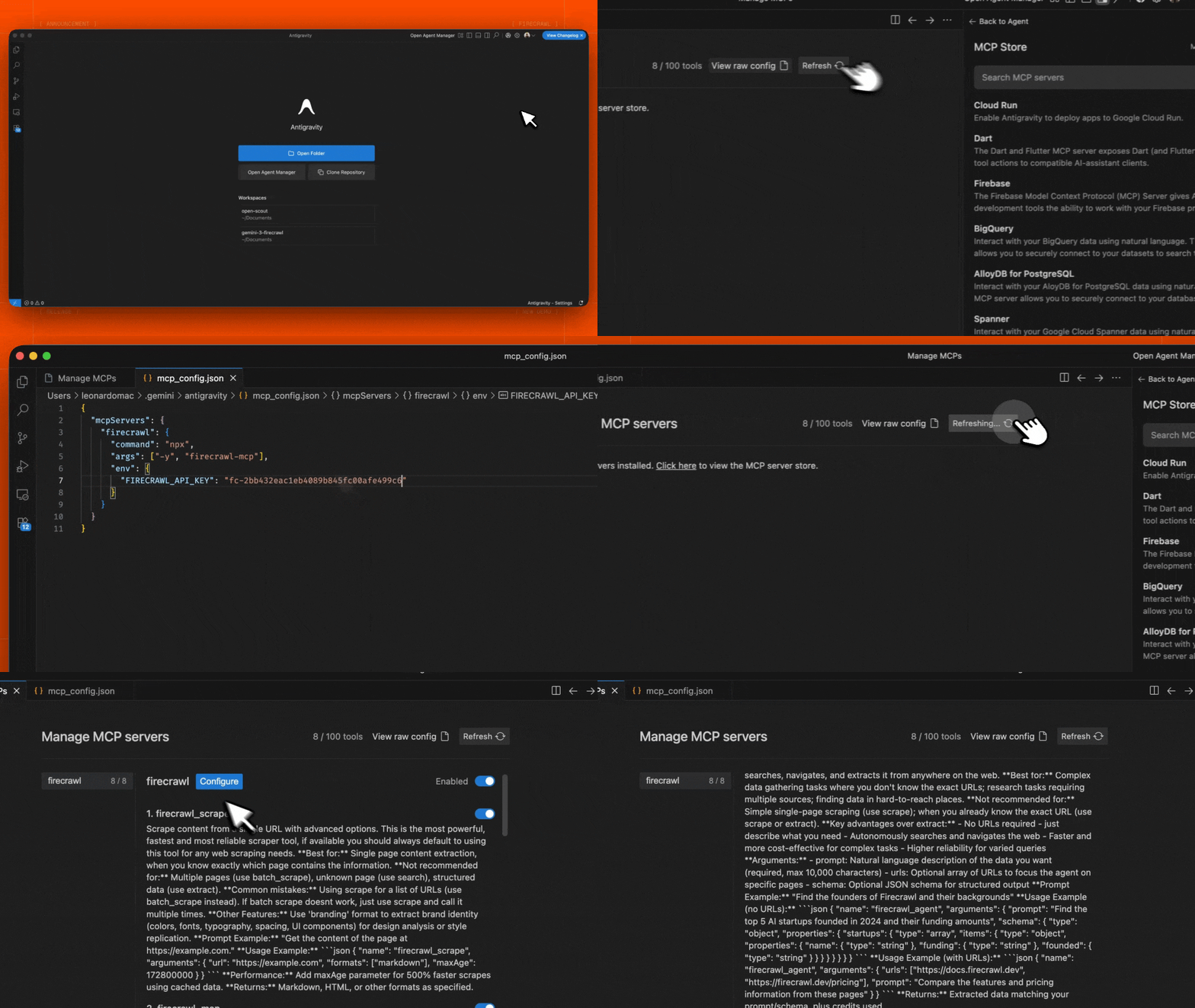 1. Editor または Agent Manager ビューで Agent サイドバーを開きます
2. "..." (More Actions) メニューをクリックし、**MCP Servers** を選択します
3. **View raw config** を選択して、ローカルの `mcp_config.json` ファイルを開きます
4. 以下の設定を追加します:
```json theme={null}
{
"mcpServers": {
"firecrawl": {
"command": "npx",
"args": ["-y", "firecrawl-mcp"],
"env": {
"FIRECRAWL_API_KEY": "YOUR_FIRECRAWL_API_KEY"
}
}
}
}
```
5. ファイルを保存し、Antigravity MCP インターフェースで **Refresh** をクリックして、新しいツールが表示されることを確認します。
`YOUR_FIRECRAWL_API_KEY` を、[https://firecrawl.dev/app/api-keys](https://www.firecrawl.dev/app/api-keys) から取得した API キーに置き換えてください。
1. Editor または Agent Manager ビューで Agent サイドバーを開きます
2. "..." (More Actions) メニューをクリックし、**MCP Servers** を選択します
3. **View raw config** を選択して、ローカルの `mcp_config.json` ファイルを開きます
4. 以下の設定を追加します:
```json theme={null}
{
"mcpServers": {
"firecrawl": {
"command": "npx",
"args": ["-y", "firecrawl-mcp"],
"env": {
"FIRECRAWL_API_KEY": "YOUR_FIRECRAWL_API_KEY"
}
}
}
}
```
5. ファイルを保存し、Antigravity MCP インターフェースで **Refresh** をクリックして、新しいツールが表示されることを確認します。
`YOUR_FIRECRAWL_API_KEY` を、[https://firecrawl.dev/app/api-keys](https://www.firecrawl.dev/app/api-keys) から取得した API キーに置き換えてください。
### n8n 上での実行
n8n で Firecrawl MCP サーバーに接続するには:
1. [https://firecrawl.dev/app/api-keys](https://www.firecrawl.dev/app/api-keys) から Firecrawl APIキーを取得する
2. n8n のワークフローで **AI Agent** ノードを追加する
3. AI Agent の設定で、新しい **Tool** を追加する
4. ツールタイプとして **MCP Client Tool** を選択する
5. MCP サーバーのエンドポイントを入力する:
```
https://mcp.firecrawl.dev/v2/mcp
```
6. **Server Transport** を **HTTP Streamable** に設定します
7. **Authentication** を **Bearer** に設定して Firecrawl APIキーを貼り付けるか、**None** のままにして keyless free tier を使用します
8. **Tools to include** では **All**、**Selected**、または **All Except** を選択できます。これにより Firecrawl のツール (scrape、crawl、map、search、extract など) が利用可能になります。
セルフホスト環境でデプロイする場合は、npx で MCP サーバー を実行し、HTTP transport モードを有効にします:
```bash theme={null}
env HTTP_STREAMABLE_SERVER=true \
FIRECRAWL_API_KEY=fc-YOUR_API_KEY \
FIRECRAWL_API_URL=YOUR_FIRECRAWL_INSTANCE \
npx -y firecrawl-mcp
```
これによりサーバーが `http://localhost:3000/v2/mcp` で起動し、n8n のワークフロー内でエンドポイントとして利用できます。n8n では HTTP トランスポートが必要なため、環境変数 `HTTP_STREAMABLE_SERVER=true` を設定する必要があります。
## 設定
### 環境変数
#### Cloud API とセルフホスト API
* `FIRECRAWL_API_KEY`: Firecrawl のAPIキー
* Cloud API (デフォルト) を使用する場合に必須
* `FIRECRAWL_API_URL` を指定したセルフホスト環境では任意
* `FIRECRAWL_API_URL` (任意) : セルフホスト環境向けのカスタムAPIエンドポイント
* 例: `https://firecrawl.your-domain.com`
* 指定しない場合は Cloud API が使用されます (APIキーが必要)
### 設定例
クラウド API を使用する場合:
```bash theme={null}
export FIRECRAWL_API_KEY=your-api-key
```
セルフホスト環境の場合:
```bash theme={null}
export FIRECRAWL_API_URL=https://firecrawl.your-domain.com
export FIRECRAWL_API_KEY=your-api-key # インスタンスで認証が必要な場合
```
### Claude Desktop でのカスタム設定
次の内容を `claude_desktop_config.json` に追加します:
```json theme={null}
{
"mcpServers": {
"mcp-server-firecrawl": {
"command": "npx",
"args": ["-y", "firecrawl-mcp"],
"env": {
"FIRECRAWL_API_KEY": "YOUR_API_KEY_HERE"
}
}
}
}
```
### Hosted MCP とローカル MCP
Hosted MCP サーバー は、安全にリモート利用できるよう最適化されています。MCP サーバー をローカルで実行する場合に利用できる一部の options は、リモートでは制限されるか、利用できません。
* Hosted キー不要 mode では、キー不要対応の tools のみが公開され、IP ごとにレート制限が適用されます。
* ローカル専用の file read は、MCP サーバー をローカルで実行している場合にのみ利用できます。
* agent がローカルリソースへのアクセスを必要とする場合、webhook とローカルの file path は、ローカルまたは セルフホスト の MCP サーバー から設定する必要があります。
### レート制限
レート制限は Firecrawl によって適用されます。より高い上限と全ツールセットへのアクセスには、APIキーをご利用ください。
## 利用可能なツール
### 1. スクレイプツール (`firecrawl_scrape`)
高度なオプションを使って、単一のURLからコンテンツをスクレイピングします。
```json theme={null}
{
"name": "firecrawl_scrape",
"arguments": {
"url": "https://example.com",
"formats": ["markdown"],
"onlyMainContent": true,
"waitFor": 1000,
"mobile": false,
"includeTags": ["article", "main"],
"excludeTags": ["nav", "footer"],
"skipTlsVerification": false
}
}
```
個人を特定できる情報をマスキングするには、スクレイプツールの引数に`redactPII`を含めます。
```json theme={null}
{
"name": "firecrawl_scrape",
"arguments": {
"url": "https://example.com/contact",
"formats": ["markdown"],
"redactPII": true
}
}
```
### 2. Map Tool (`firecrawl_map`)
ウェブサイトをマッピングして、サイト上でインデックスされているすべてのURLを洗い出します。
```json theme={null}
{
"name": "firecrawl_map",
"arguments": {
"url": "https://example.com",
"search": "blog",
"sitemap": "include",
"includeSubdomains": false,
"limit": 100,
"ignoreQueryParameters": true
}
}
```
#### Map Tool オプション:
* `url`: マッピング対象となるウェブサイトのベース URL
* `search`: URL をフィルタリングするための任意の検索語句
* `sitemap`: サイトマップの利用方法を制御 - "include"、"skip"、"only" のいずれか
* `includeSubdomains`: マッピング時にサブドメインを含めるかどうか
* `limit`: 返す URL の最大件数
* `ignoreQueryParameters`: マッピング時にクエリパラメータを無視するかどうか
**最適な用途:** 何をスクレイピングするか決める前にウェブサイト上の URL を探索する場合や、サイト内の特定セクションを見つける場合。
**戻り値:** サイト上で検出された URL の配列。
### 3. Search Tool (`firecrawl_search`)
ウェブを検索し、必要に応じて検索結果から内容を抽出します。
```json theme={null}
{
"name": "firecrawl_search",
"arguments": {
"query": "検索クエリ",
"limit": 5,
"location": "United States",
"tbs": "qdr:m",
"scrapeOptions": {
"formats": ["markdown"],
"onlyMainContent": true
}
}
}
```
#### Search ツールのオプション:
* `query`: 検索クエリ文字列 (必須)
* `limit`: 返す結果の最大件数
* `location`: 検索結果の地理的な場所
* `tbs`: 時間ベースの検索フィルター (例: `qdr:d` 過去1日、`qdr:w` 過去1週間、`qdr:m` 過去1か月)
* `filter`: 追加の検索フィルター
* `sources`: 検索対象とするソース種別の配列 (`web`、`images`、`news`)
* `scrapeOptions`: 検索結果ページをスクレイピングする際のオプション
* `enterprise`: enterprise オプションの配列 (`default`、`anon`、`zdr`)
### 4. 解析ツール (`firecrawl_parse`)
PDF、DOCX、XLSX、HTML ドキュメントなどのローカルファイルを、クリーンで LLM 向けのデータに解析します。
```json theme={null}
{
"name": "firecrawl_parse",
"arguments": {
"filePath": "/absolute/path/to/report.pdf",
"formats": ["markdown"]
}
}
```
`FIRECRAWL_API_URL` を使って Firecrawl MCP をローカルで Firecrawl API インスタンスに対して実行すると、MCP サーバーは `filePath` を直接読み取り、ファイルのバイト列を `/v2/parse` に送信できます。
リモートでホストされている MCP サーバーを使用する場合、そのホストサーバーは手元のマシン上のファイルを読み取れません。そのため、`firecrawl_parse` はリモートの keyless URL でも動作する 2 段階の受け渡し方式を使用します。
1. `filePath` を指定して `firecrawl_parse` を呼び出します。ツールは、入力済みのアップロードコマンドと、`uploadRef` を含む `nextToolCall` を返します。
2. ファイルを読み取れるマシンでアップロードコマンドを実行し、返された `uploadRef` を使ってもう一度 `firecrawl_parse` を呼び出します。
アップロードコマンドは、ファイルのバイト列を短時間だけ有効な署名付きアップロード先に送信します。これに Firecrawl APIキー は含まれません。
#### 解析ツールのオプション:
* `filePath`: 解析するファイルのローカルパスです。最初の呼び出しではこれを使用します。
* `uploadRef`: 最初の hosted-MCP 呼び出しで返される参照です。アップロード成功後の2回目の呼び出しで使用します。
* `formats`: 出力フォーマットです。デフォルトは `markdown` です。
* `parsers`: PDF の解析オプションなどのパーサー設定です。
* `contentType`: 任意のファイル MIME タイプの上書きです。
* `declaredSizeBytes`: 任意のファイルサイズの目安です。ファイルサイズの上限は 50 MB です。
**最適な用途:** 公開 URL で利用できないローカルまたは非公開のドキュメント。
**推奨されない用途:** 公開ドキュメントの URL。代わりに `firecrawl_scrape` を使用してください。URL からドキュメントを検出して解析します。
### 5. Crawl Tool (`firecrawl_crawl`)
高度なオプションを指定して非同期クロールを開始します。
```json theme={null}
{
"name": "firecrawl_crawl",
"arguments": {
"url": "https://example.com",
"maxDiscoveryDepth": 2,
"limit": 100,
"allowExternalLinks": false,
"deduplicateSimilarURLs": true
}
}
```
### 6. クロールのステータスを確認 (`firecrawl_check_crawl_status`)
クロールジョブのステータスを確認します。
```json theme={null}
{
"name": "firecrawl_check_crawl_status",
"arguments": {
"id": "550e8400-e29b-41d4-a716-446655440000"
}
}
```
**戻り値:** クロールジョブのステータスおよび進捗状況 (可能であれば結果も含む) 。
LLM の機能を使用して、Web ページから構造化情報を抽出します。クラウド型 AI とセルフホスト型 LLM の両方での抽出に対応しています。
```json theme={null}
{
"name": "firecrawl_extract",
"arguments": {
"urls": ["https://example.com/page1", "https://example.com/page2"],
"prompt": "Extract product information including name, price, and description",
"schema": {
"type": "object",
"properties": {
"name": { "type": "string" },
"price": { "type": "number" },
"description": { "type": "string" }
},
"required": ["name", "price"]
},
"allowExternalLinks": false,
"enableWebSearch": false,
"includeSubdomains": false
}
}
```
レスポンス例:
```json theme={null}
{
"content": [
{
"type": "text",
"text": {
"name": "Example Product",
"price": 99.99,
"description": "This is an example product description"
}
}
],
"isError": false
}
```
* `urls`: 情報を抽出する対象の URL 配列
* `prompt`: LLM による抽出に使用するカスタムプロンプト
* `schema`: 構造化データ抽出用の JSON スキーマ
* `allowExternalLinks`: 外部リンクからの抽出を許可するかどうか
* `enableWebSearch`: 追加のコンテキストのためにウェブ検索を有効にするかどうか
* `includeSubdomains`: 抽出対象にサブドメインを含めるかどうか
セルフホスト型インスタンスを使用する場合、抽出処理には構成済みの LLM が使用されます。クラウド API の場合は、Firecrawl のマネージド LLM サービスが使用されます。
### 8. Agent Tool (`firecrawl_agent`)
インターネットを自律的に閲覧し、情報を検索し、ページ間を移動し、クエリに基づいて構造化データを抽出する自律型のウェブリサーチエージェントです。非同期で動作し、まずジョブ ID を即座に返し、その後 `firecrawl_agent_status` をポーリングして完了を確認し、結果を取得します。
```json theme={null}
{
"name": "firecrawl_agent",
"arguments": {
"prompt": "Find the top 5 AI startups founded in 2024 and their funding amounts",
"schema": {
"type": "object",
"properties": {
"startups": {
"type": "array",
"items": {
"type": "object",
"properties": {
"name": { "type": "string" },
"funding": { "type": "string" },
"founded": { "type": "string" }
}
}
}
}
}
}
}
```
エージェントに重点的に処理させたい特定のURLを指定することもできます:
```json theme={null}
{
"name": "firecrawl_agent",
"arguments": {
"urls": ["https://docs.firecrawl.dev", "https://firecrawl.dev/pricing"],
"prompt": "Compare the features and pricing information from these pages"
}
}
```
#### Agent Tool Options:
* `prompt`: 取得したいデータの内容を自然言語で記述したもの (必須、最大 10,000 文字)
* `urls`: エージェントを特定のページにフォーカスさせるためのオプションの URL 配列
* `schema`: 構造化出力のためのオプションの JSON スキーマ
**Best for:** 正確な URL がわからない複雑なリサーチタスク、複数ソースからのデータ収集、ウェブ全体に散在する情報の検索、通常のスクレイピングでは失敗しがちな JavaScript 依存度の高い SPA からのデータ抽出。
**Returns:** ステータス確認用の Job ID。`firecrawl_agent_status` を使って結果をポーリングします。
### 9. エージェントのステータスを確認 (`firecrawl_agent_status`)
エージェントジョブのステータスを確認し、完了時に結果を取得します。15〜30秒ごとにポーリングし、リクエストが失敗したと見なす前に少なくとも2〜3分間はポーリングを続けてください。
```json theme={null}
{
"name": "firecrawl_agent_status",
"arguments": {
"id": "550e8400-e29b-41d4-a716-446655440000"
}
}
```
#### エージェントステータスのオプション:
* `id`: `firecrawl_agent` から返されるエージェントジョブ ID (必須)
**取り得るステータス:**
* `processing`: エージェントがまだ調査中 — ポーリングを継続
* `completed`: 調査完了 — レスポンスに抽出データが含まれる
* `failed`: エラーが発生
**戻り値:** エージェントジョブのステータス、進行状況、および (完了している場合は) 結果。
### 10. Interact (`firecrawl_interact`)
実行中のブラウザセッションでページを操作できます。ボタンのクリック、フォームへの入力、動的コンテンツの抽出、さらに先のページへの移動が可能です。
次の 2 つのターゲティングモードのいずれかを使用します:
* `url` を渡すと、1 回の MCP 呼び出しで新しいページを開いて操作できます。
* 以前の `firecrawl_scrape` 呼び出しで取得した `scrapeId` を渡すと、すでに読み込まれているページを再利用できます。
`url` と `scrapeId` の両方を渡さないでください。`prompt` または `code` のいずれかを指定してください。`scrapeOptions` は `url` モードでのみ使用できます。
**URL モードの例:**
```json theme={null}
{
"name": "firecrawl_interact",
"arguments": {
"url": "https://example.com/products",
"prompt": "Click on the first product and tell me its price"
}
}
```
**スクレイピングの再利用例:**
```json theme={null}
{
"name": "firecrawl_interact",
"arguments": {
"scrapeId": "scrape-id-from-previous-scrape",
"prompt": "Click the Sign In button"
}
}
```
#### Interact ツールのオプション:
* `url`: 操作対象のページ。セッションを自動的に開きます。これまたは `scrapeId` を使用します。
* `scrapeId`: 前回の `firecrawl_scrape` 呼び出しで取得した scrape job ID。これまたは `url` を使用します。
* `prompt`: 実行するアクションを自然言語で指示するプロンプト。`prompt` または `code` を指定します。
* `code`: ブラウザセッションで実行するコード。`code` または `prompt` を指定します。
* `language`: `bash`、`python`、または `node` (任意、デフォルトは `node`、`code` 使用時のみ使用)。
* `timeout`: 実行タイムアウト (秒)、1~300 (任意、デフォルトは 30)。
* `scrapeOptions`: `url` モードでのみ使用する任意のスクレイピング設定。
**最適な用途:** 1つのページ内で複数ステップのワークフローを実行する場合 — サイト内検索、検索結果のクリックによる遷移、フォーム入力、操作が必要なデータの抽出。
**戻り値:** output とライブビュー URL を含む操作結果。
### 11. Interact セッションの停止 (`firecrawl_interact_stop`)
スクレイピングしたページの Interact セッションを停止します。リソースを解放するため、操作を終えたらこれを呼び出してください。
```json theme={null}
{
"name": "firecrawl_interact_stop",
"arguments": {
"scrapeId": "scrape-id-from-previous-scrape"
}
}
```
#### Interact 停止オプション:
* `scrapeId`: 停止するセッションの `scrapeId` (必須)
**戻り値:** セッションが停止されたことの確認。
## ログシステム
サーバーには包括的なログ機能があります:
* 操作のステータスと進捗
* パフォーマンス指標
* クレジット使用状況の監視
* レート制限のトラッキング
* エラー状況
ログメッセージの例:
```
[INFO] Firecrawl MCP Server initialized successfully
[INFO] URL のスクレイピングを開始: https://example.com
[INFO] Starting crawl for URL: https://example.com
[WARNING] Credit usage has reached warning threshold
[ERROR] Rate limit exceeded, retrying in 2s...
```
## エラーハンドリング
サーバーは堅牢なエラーハンドリング機能を提供します:
* 一時的なエラーに対する自動リトライ
* バックオフを伴うレート制限への対応
* 詳細なエラーメッセージ
* クレジット使用量に関する警告
* ネットワーク障害への耐性
エラーレスポンスの例:
```json theme={null}
{
"content": [
{
"type": "text",
"text": "Error: Rate limit exceeded. Retrying in 2 seconds..."
}
],
"isError": true
}
```
## 開発
```bash theme={null}
# 依存関係のインストール
npm install
# ビルド
npm run build
# テストの実行
npm test
```
### コントリビュート方法
1. リポジトリをフォークする
2. 機能ブランチを作成する
3. テストを実行する: `npm test`
4. プルリクエストを作成して送信する
### 貢献者への感謝
初期実装にご尽力いただいた [@vrknetha](https://github.com/vrknetha)、[@cawstudios](https://caw.tech) に感謝します。
ホスティングしていただいた MCP.so と Klavis AI、ならびに当社サーバーの統合にご協力いただいた [@gstarwd](https://github.com/gstarwd)、[@xiangkaiz](https://github.com/xiangkaiz)、[@zihaolin96](https://github.com/zihaolin96) に感謝します。
## ライセンス
MIT ライセンス — 詳細は LICENSE ファイルをご覧ください