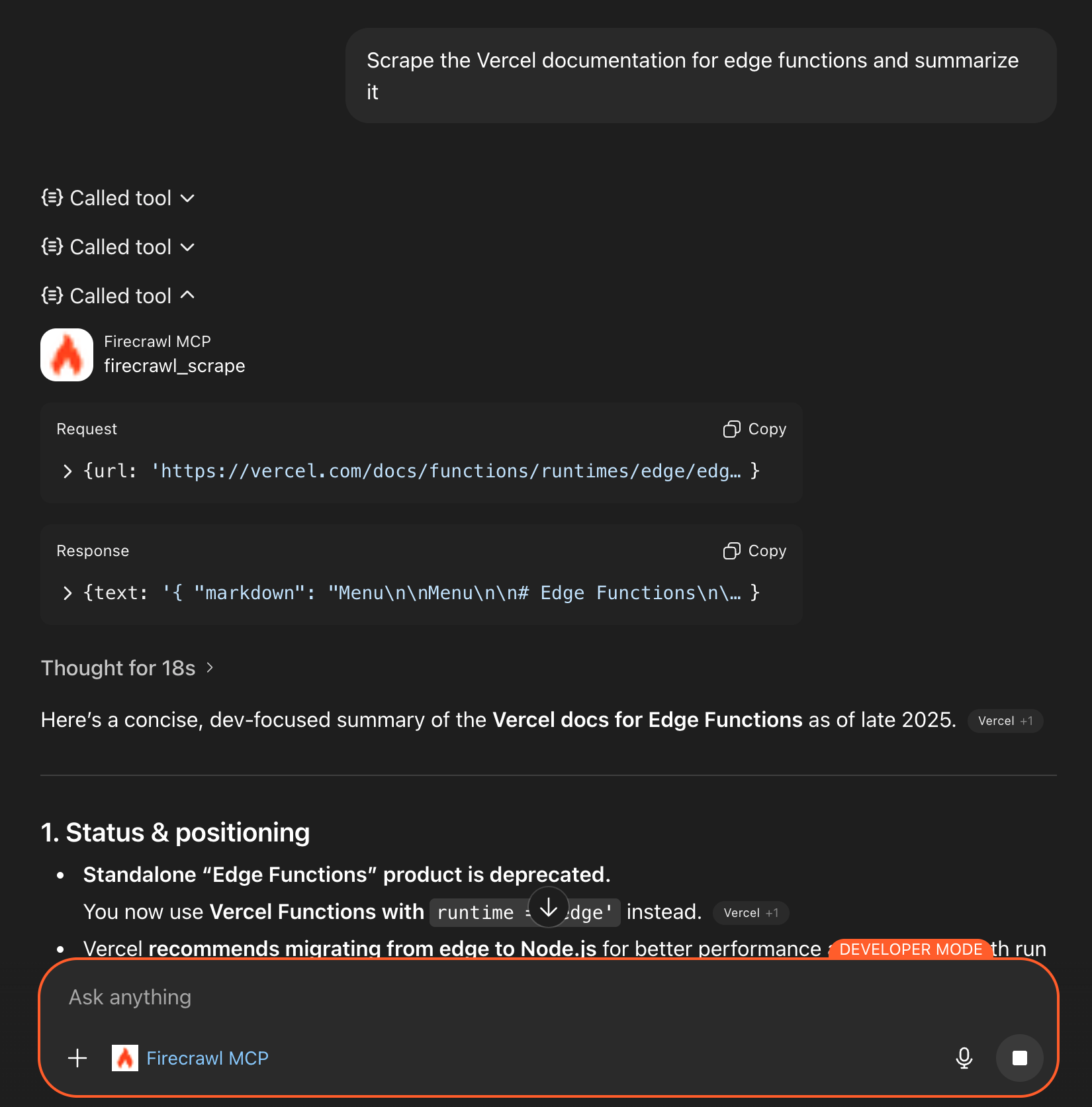
> ## Documentation Index
> Fetch the complete documentation index at: https://docs.firecrawl.dev/llms.txt
> Use this file to discover all available pages before exploring further.
# ChatGPT での MCP Web 検索とスクレイピング
> 2 分で ChatGPT に Web スクレイピングと検索機能を追加
ChatGPT における MCP サポートは現在ベータ版機能です。OpenAI による開発が進むにつれて、インターフェースや提供状況が変更される可能性があります。
**提供状況:** MCP コネクタ付きの Developer モードは Free プランでは利用できず、有料の ChatGPT サブスクリプションが必要です。提供状況と機能はプランや地域によって異なります。最新の提供状況とセットアップ手順については、[OpenAI による Developer Mode のドキュメント](https://help.openai.com/en/articles/12584461-developer-mode-apps-and-full-mcp-connectors-in-chatgpt-beta) を参照してください。
Firecrawl MCP を使って、ChatGPT に Web スクレイピングと検索機能を追加しましょう。
## かんたんセットアップ
### 1. APIキーを取得する
[firecrawl.dev/app/api-keys](https://www.firecrawl.dev/app/api-keys) にサインアップして、APIキーをコピーします。
### 2. 開発者モードを有効にする
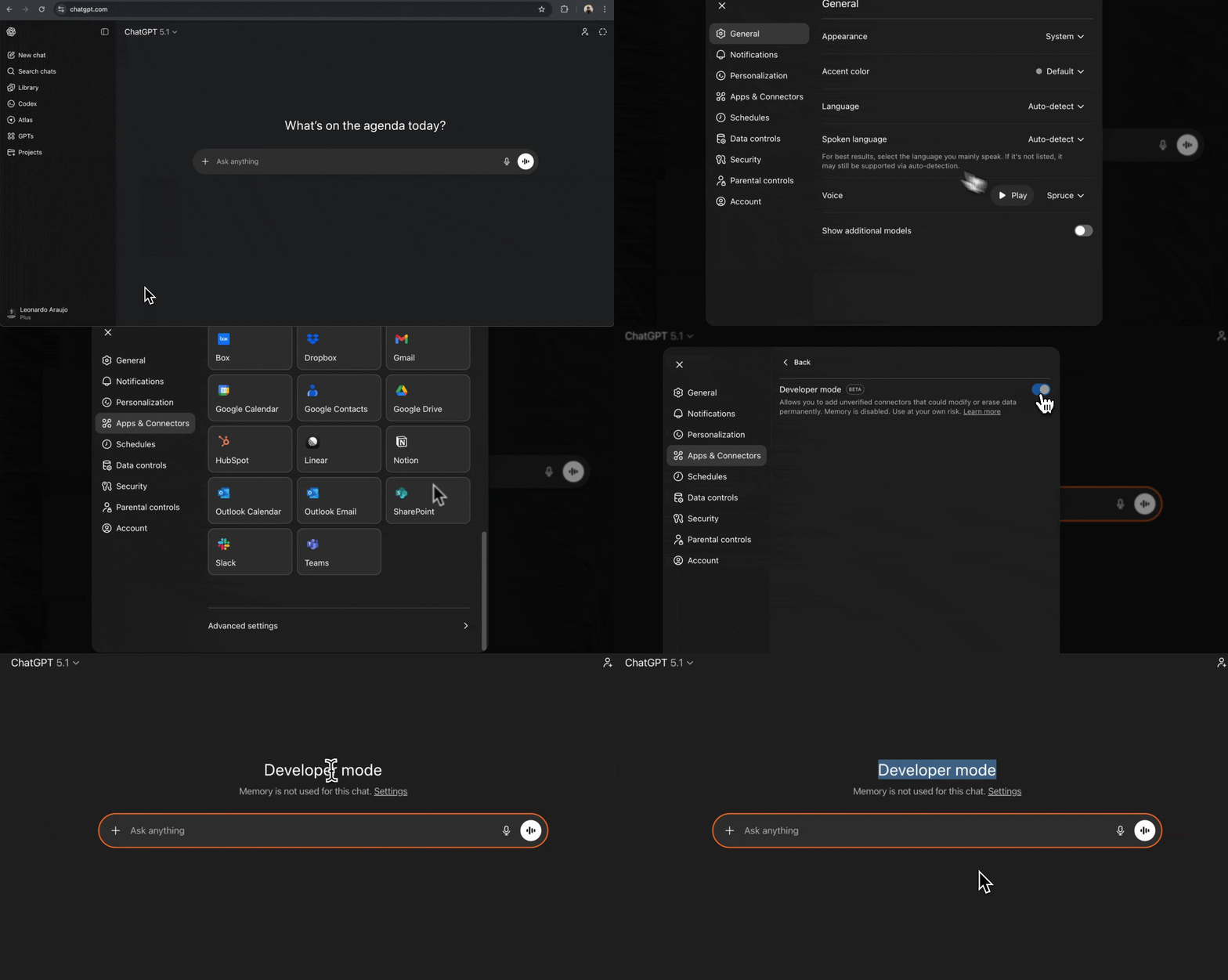
画面左下のユーザー名をクリックして ChatGPT の設定を開くか、[chatgpt.com/#settings](https://chatgpt.com/#settings) に直接アクセスします。
設定画面で一番下までスクロールし、**Advanced Settings** を選択します。**Developer mode** をオンに切り替えます。
### 3. コネクタを作成する
Developer mode を有効にした状態で、同じ設定モーダル内の **Apps & Connectors** タブに移動します。
右上の **Create** ボタンをクリックします。
 コネクタの詳細を入力します:
* **Name:** `Firecrawl MCP`
* **Description:** `Web scraping, crawling, search, and content extraction`(任意)
* **MCP Server URL:** `https://mcp.firecrawl.dev/YOUR_API_KEY_HERE/v2/mcp`
* **Authentication:** `None`
URL 中の `YOUR_API_KEY_HERE` を、実際の [Firecrawl API key](https://www.firecrawl.dev/app/api-keys) に置き換えてください。
コネクタの詳細を入力します:
* **Name:** `Firecrawl MCP`
* **Description:** `Web scraping, crawling, search, and content extraction`(任意)
* **MCP Server URL:** `https://mcp.firecrawl.dev/YOUR_API_KEY_HERE/v2/mcp`
* **Authentication:** `None`
URL 中の `YOUR_API_KEY_HERE` を、実際の [Firecrawl API key](https://www.firecrawl.dev/app/api-keys) に置き換えてください。
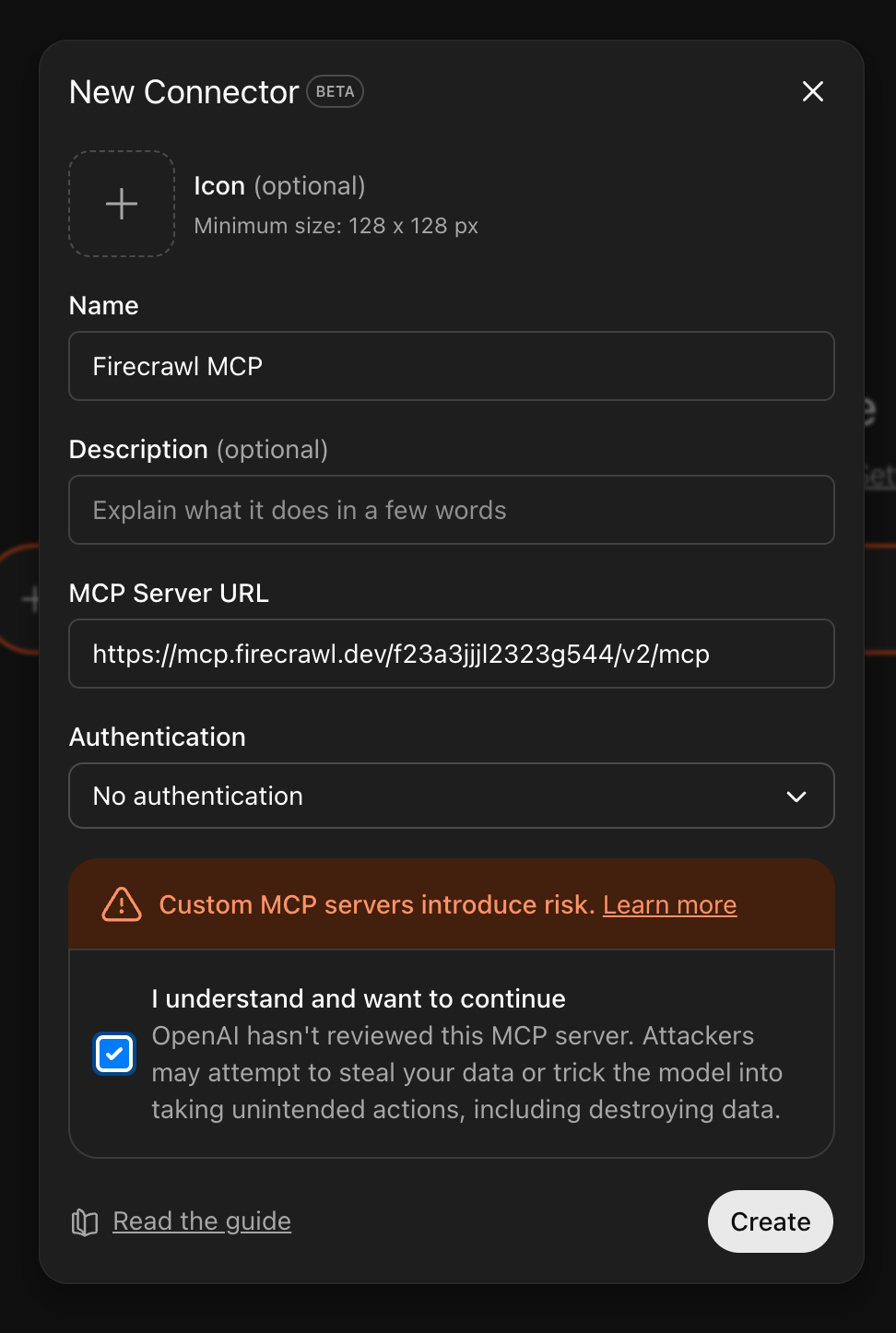 **"I understand and want to continue"** チェックボックスをオンにしてから、**Create** をクリックします。
### 4. セットアップを確認する
ChatGPT のメイン画面に戻ってください。**Developer mode** と表示されていれば、MCP コネクタが有効になっています。
Developer mode が表示されない場合は、ページを再読み込みしてください。それでも表示されない場合は、もう一度設定を開き、Advanced Settings で Developer mode がオンになっていることを確認してください。
### 5. Firecrawl ツールにアクセスする
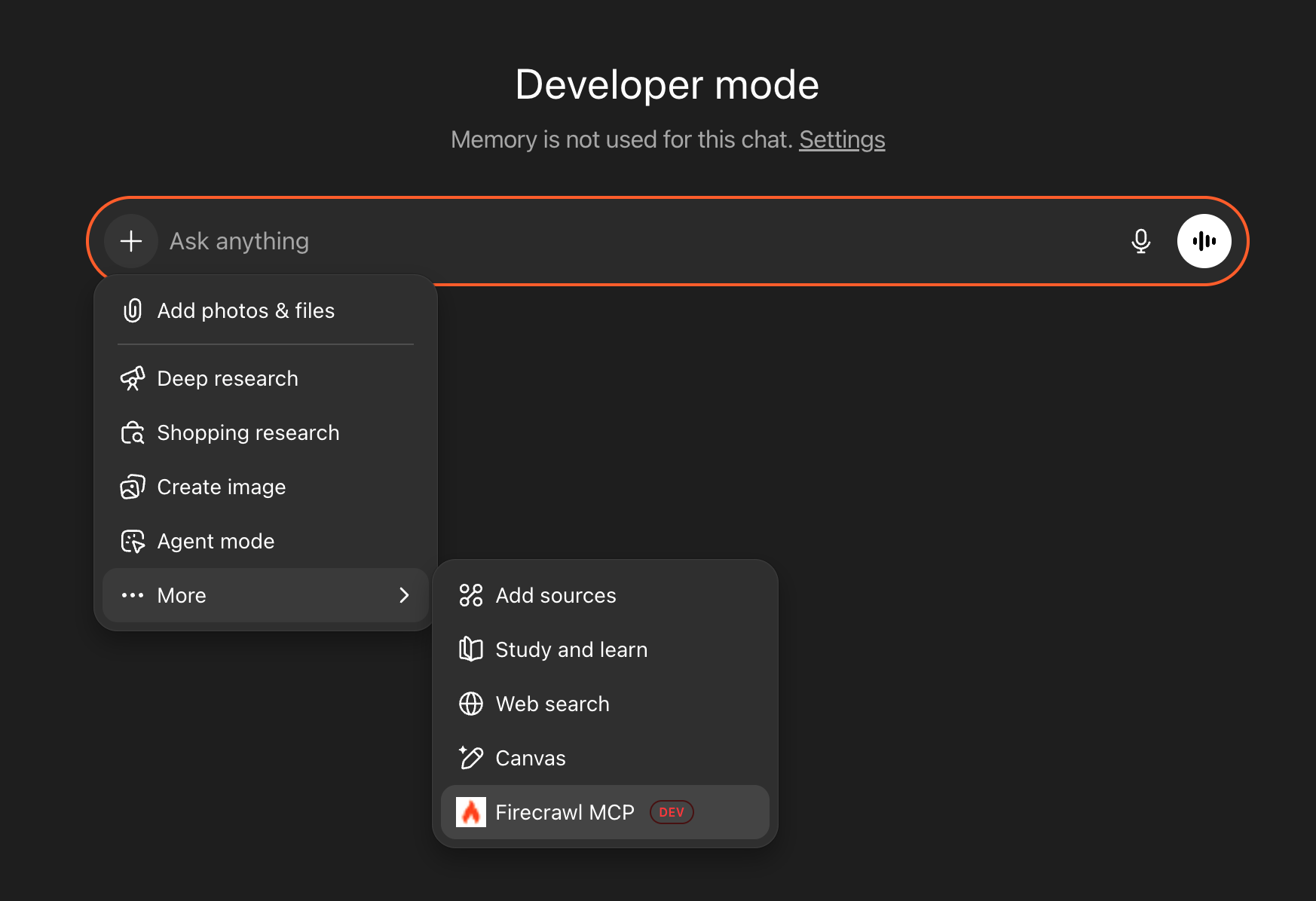
会話で Firecrawl を使用するには、チャット入力欄の **+** ボタンをクリックし、**More** を選択してから **Firecrawl MCP** をクリックします。
## クイックデモ
Firecrawl MCP を選択した状態で、次のプロンプトを試してみてください:
**Search:**
```
Search for the latest React Server Components updates
```
**スクレイピング:**
```
Scrape firecrawl.dev and tell me what it does
```
**ドキュメントを取得:**
```
Vercelのエッジ関数のドキュメントをスクレイピングして要約する
```
## ツールの確認
ChatGPT が Firecrawl MCP ツールを使用する際、承認を求める確認プロンプトが表示されることがあります。一部の ChatGPT Desktop バージョンでは、このダイアログを表示せずにツール呼び出しが自動承認されます。プロンプトが表示されない場合は、レスポンス内の **"Called tool"** セクションを確認するか、[firecrawl.dev/app/usage](https://www.firecrawl.dev/app/usage) で利用状況を確認することで、ツールが呼び出されたことを確認できます。
**確認プロンプトが表示されませんか?** 確認ダイアログが表示されないまま ChatGPT が質問に回答する場合、Firecrawl MCP コネクタがその会話に接続されていない可能性が高いです。[ステップ 5](#5-access-firecrawl-tools) に戻り、プロンプトを送信する前に **+** ボタンをクリックし、**More** を選択してから **Firecrawl MCP** を選んでいることを確認してください。コネクタは新しい会話ごとに毎回接続する必要があります。
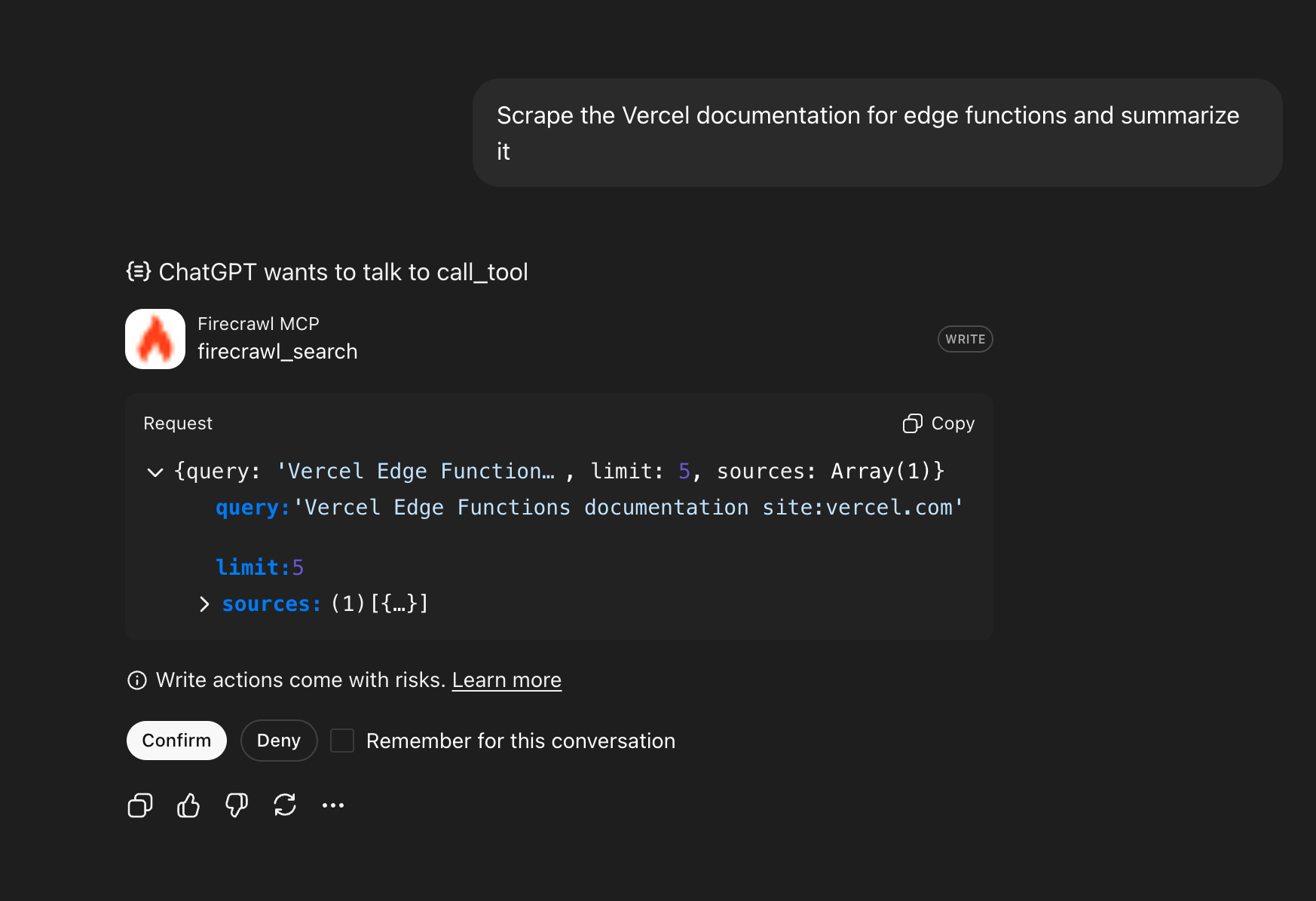 同じチャットセッション中に毎回確認が表示されないようにするには、**"Remember for this conversation"** にチェックを入れます。これは、MCP ツールが意図しないアクションを実行しないようにするために OpenAI によって実装されているセキュリティ対策です。
承認すると、ChatGPT がリクエストを実行し、結果を返します。
同じチャットセッション中に毎回確認が表示されないようにするには、**"Remember for this conversation"** にチェックを入れます。これは、MCP ツールが意図しないアクションを実行しないようにするために OpenAI によって実装されているセキュリティ対策です。
承認すると、ChatGPT がリクエストを実行し、結果を返します。