> ## Documentation Index
> Fetch the complete documentation index at: https://docs.firecrawl.dev/llms.txt
> Use this file to discover all available pages before exploring further.
# MCP Web Search & Scrape in ChatGPT
> Add web scraping and search to ChatGPT in 2 minutes
MCP support in ChatGPT is currently a beta feature. The interface and availability may change as OpenAI continues development.
**Availability:** Developer mode with MCP connectors is not available on the Free tier and requires a paid ChatGPT subscription. Availability and features vary by plan and region. See [OpenAI's documentation on Developer Mode](https://help.openai.com/en/articles/12584461-developer-mode-apps-and-full-mcp-connectors-in-chatgpt-beta) for current availability and setup instructions.
Add web scraping and search capabilities to ChatGPT with Firecrawl MCP.
## Quick Setup
### 1. Get Your API Key
Sign up at [firecrawl.dev/app/api-keys](https://www.firecrawl.dev/app/api-keys) and copy your API key.
### 2. Enable Developer Mode
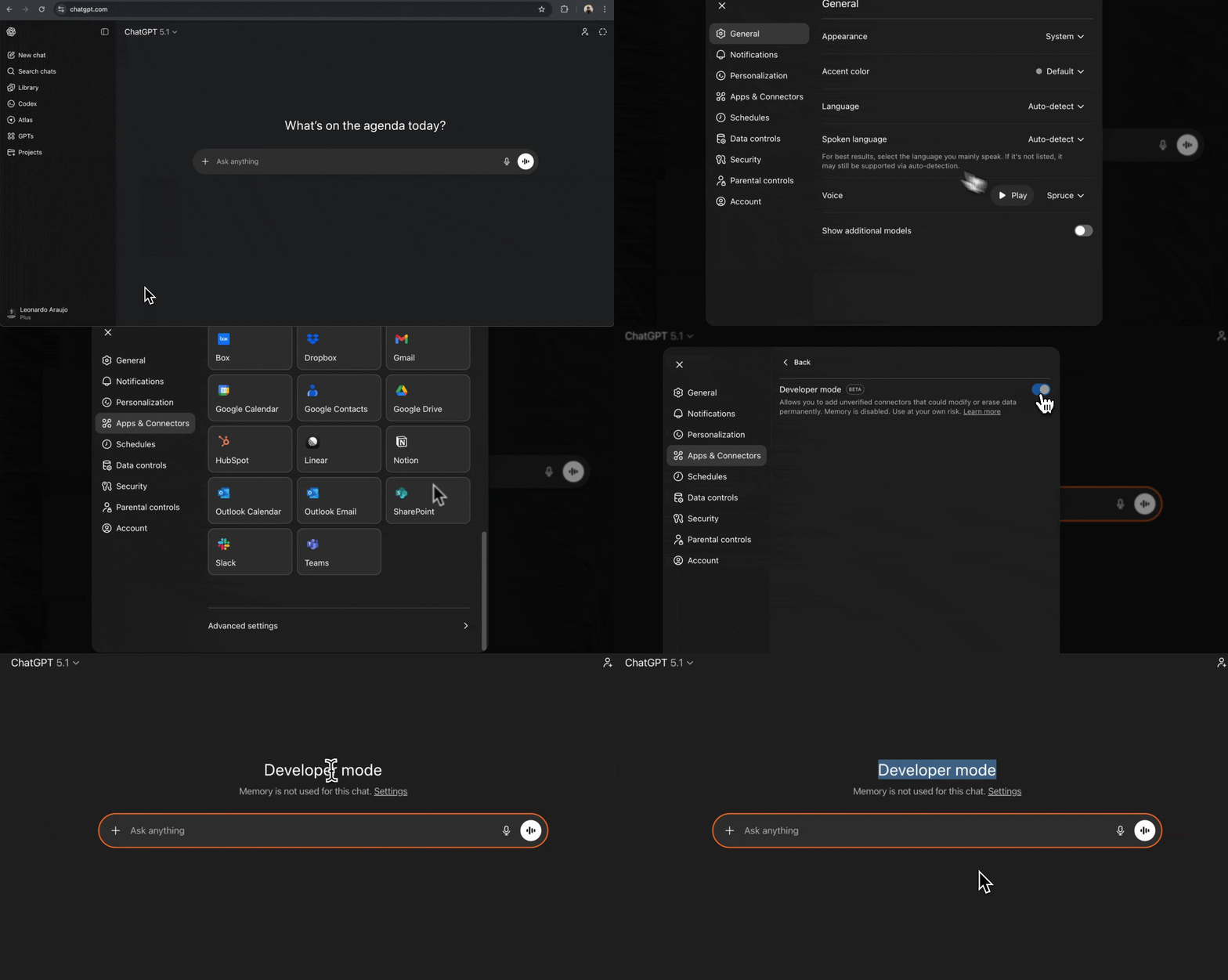
Open ChatGPT settings by clicking your username in the bottom left corner, or navigate directly to [chatgpt.com/#settings](https://chatgpt.com/#settings).
In the settings modal, scroll to the bottom and select **Advanced Settings**. Toggle **Developer mode** to ON.
 ### 3. Create the Connector
With Developer mode enabled, go to the **Apps & Connectors** tab in the same settings modal.
Click the **Create** button in the top right corner.
### 3. Create the Connector
With Developer mode enabled, go to the **Apps & Connectors** tab in the same settings modal.
Click the **Create** button in the top right corner.
 Fill in the connector details:
* **Name:** `Firecrawl MCP`
* **Description:** `Web scraping, crawling, search, and content extraction` (optional)
* **MCP Server URL:** `https://mcp.firecrawl.dev/YOUR_API_KEY_HERE/v2/mcp`
* **Authentication:** `None`
Replace `YOUR_API_KEY_HERE` in the URL with your actual [Firecrawl API key](https://www.firecrawl.dev/app/api-keys).
Fill in the connector details:
* **Name:** `Firecrawl MCP`
* **Description:** `Web scraping, crawling, search, and content extraction` (optional)
* **MCP Server URL:** `https://mcp.firecrawl.dev/YOUR_API_KEY_HERE/v2/mcp`
* **Authentication:** `None`
Replace `YOUR_API_KEY_HERE` in the URL with your actual [Firecrawl API key](https://www.firecrawl.dev/app/api-keys).
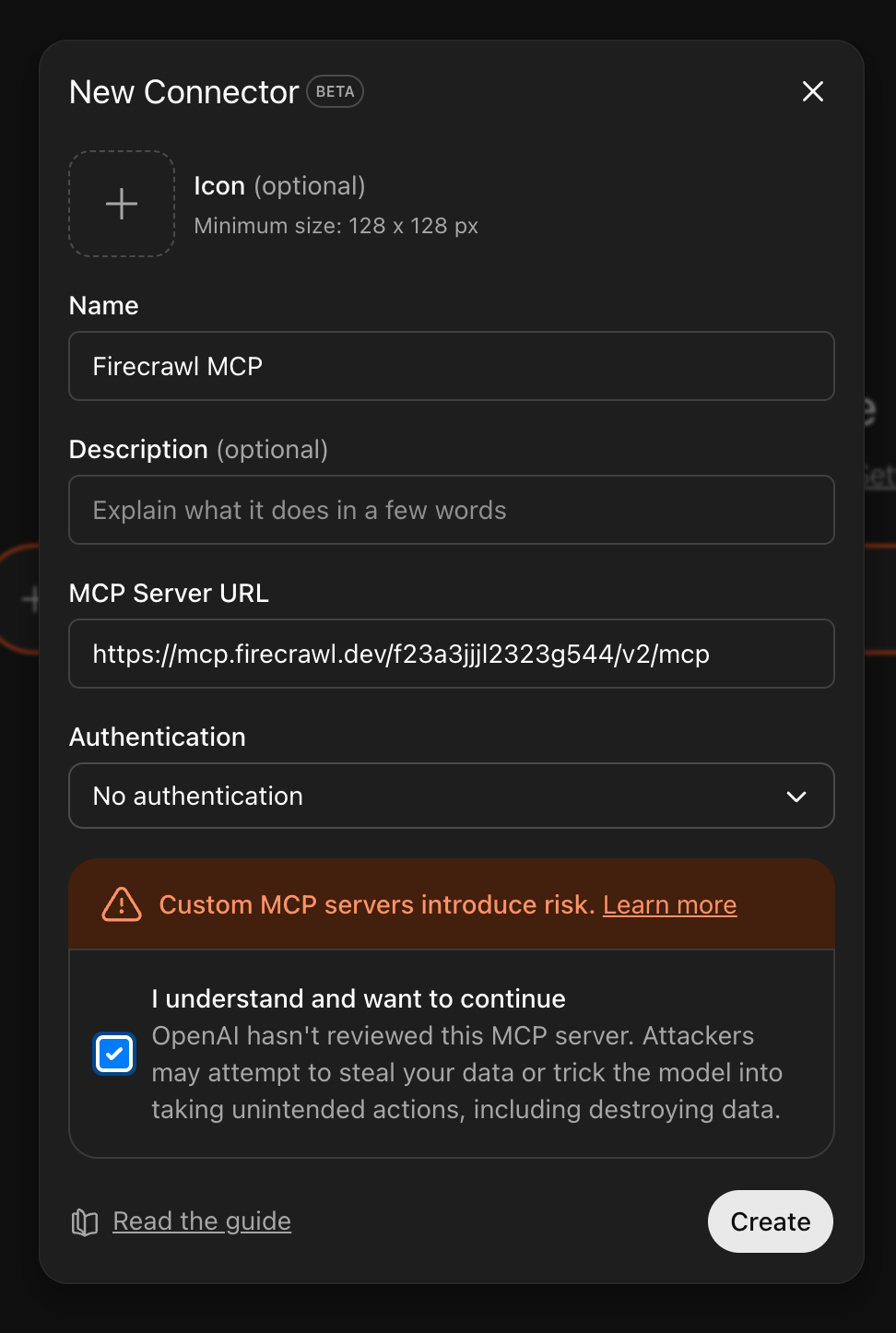 Check the **"I understand and want to continue"** checkbox, then click **Create**.
### 4. Verify Setup
Go back to the main ChatGPT interface. You should see **Developer mode** displayed, indicating that MCP connectors are active.
If you do not see Developer mode, reload the page. If it still does not appear, open settings again and verify that Developer mode is toggled ON under Advanced Settings.
### 5. Access Firecrawl Tools
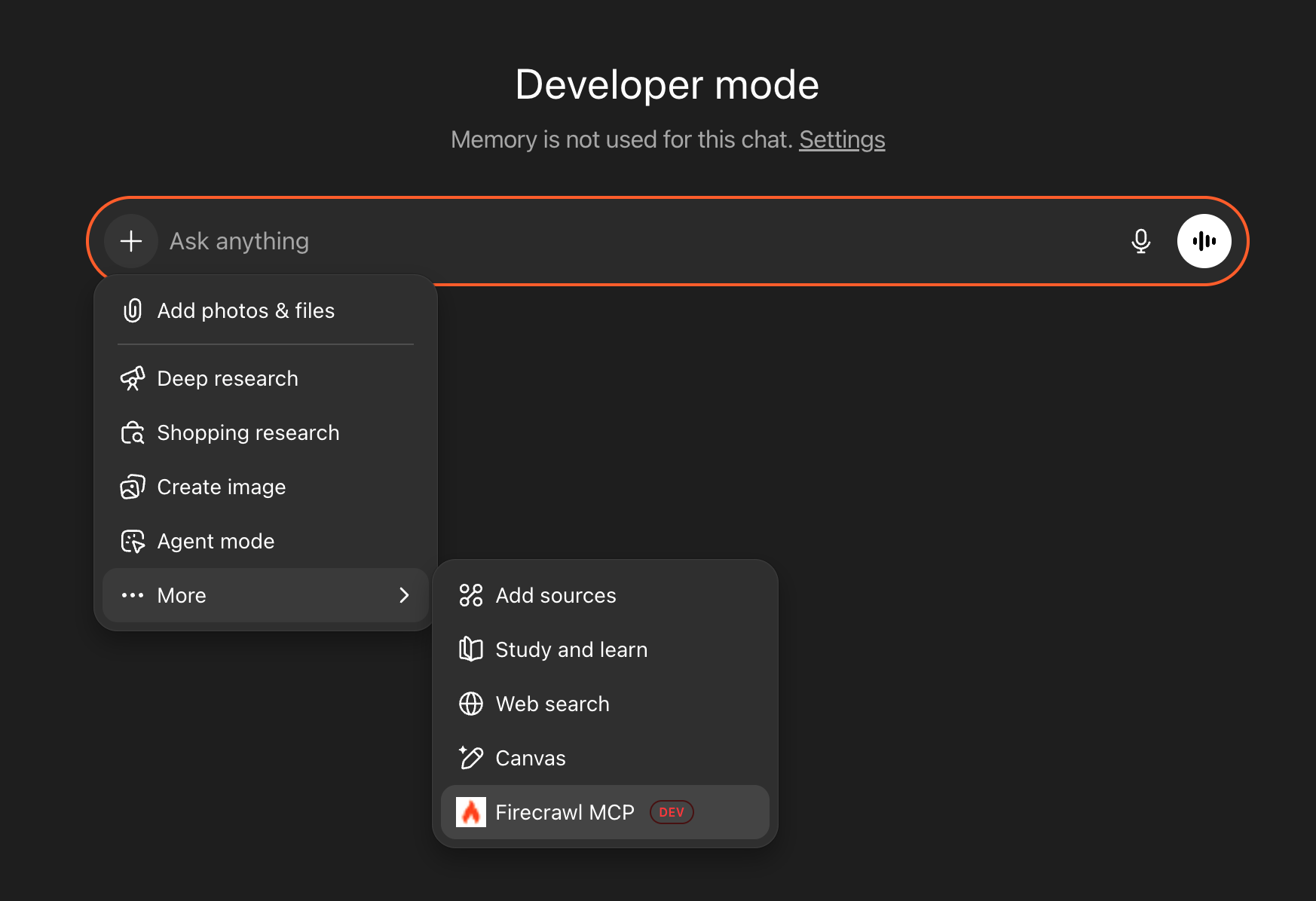
To use Firecrawl in a conversation, click the **+** button in the chat input, then select **More** and choose **Firecrawl MCP**.
Check the **"I understand and want to continue"** checkbox, then click **Create**.
### 4. Verify Setup
Go back to the main ChatGPT interface. You should see **Developer mode** displayed, indicating that MCP connectors are active.
If you do not see Developer mode, reload the page. If it still does not appear, open settings again and verify that Developer mode is toggled ON under Advanced Settings.
### 5. Access Firecrawl Tools
To use Firecrawl in a conversation, click the **+** button in the chat input, then select **More** and choose **Firecrawl MCP**.
 ## Quick Demo
With Firecrawl MCP selected, try these prompts:
**Search:**
```
Search for the latest React Server Components updates
```
**Scrape:**
```
Scrape firecrawl.dev and tell me what it does
```
**Get docs:**
```
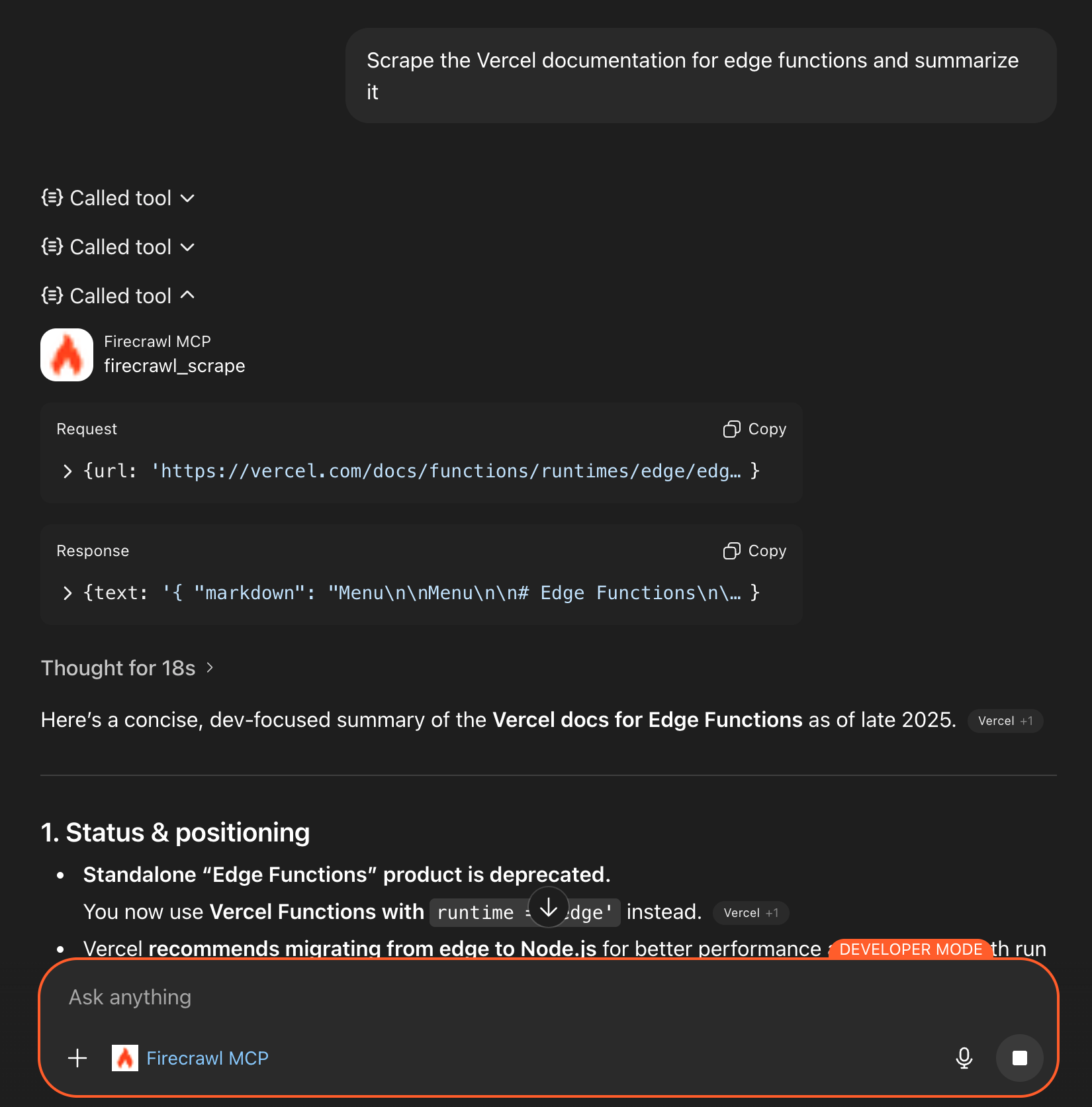
Scrape the Vercel documentation for edge functions and summarize it
```
## Tool Confirmation
When ChatGPT uses the Firecrawl MCP tools, you may see a confirmation prompt asking for your approval. Some ChatGPT Desktop versions auto-approve tool calls without showing this dialog. If no prompt appears, you can verify the tool was invoked by checking for a "Called tool" section in the response or reviewing your usage at [firecrawl.dev/app/usage](https://www.firecrawl.dev/app/usage).
**No confirmation prompt appearing?** If ChatGPT answers your question without showing a confirmation dialog, the Firecrawl MCP connector is most likely not attached to the conversation. Go back to [Step 5](#5-access-firecrawl-tools) and make sure you click the **+** button, select **More**, and choose **Firecrawl MCP** before sending your prompt. The connector must be attached to each new conversation.
## Quick Demo
With Firecrawl MCP selected, try these prompts:
**Search:**
```
Search for the latest React Server Components updates
```
**Scrape:**
```
Scrape firecrawl.dev and tell me what it does
```
**Get docs:**
```
Scrape the Vercel documentation for edge functions and summarize it
```
## Tool Confirmation
When ChatGPT uses the Firecrawl MCP tools, you may see a confirmation prompt asking for your approval. Some ChatGPT Desktop versions auto-approve tool calls without showing this dialog. If no prompt appears, you can verify the tool was invoked by checking for a "Called tool" section in the response or reviewing your usage at [firecrawl.dev/app/usage](https://www.firecrawl.dev/app/usage).
**No confirmation prompt appearing?** If ChatGPT answers your question without showing a confirmation dialog, the Firecrawl MCP connector is most likely not attached to the conversation. Go back to [Step 5](#5-access-firecrawl-tools) and make sure you click the **+** button, select **More**, and choose **Firecrawl MCP** before sending your prompt. The connector must be attached to each new conversation.
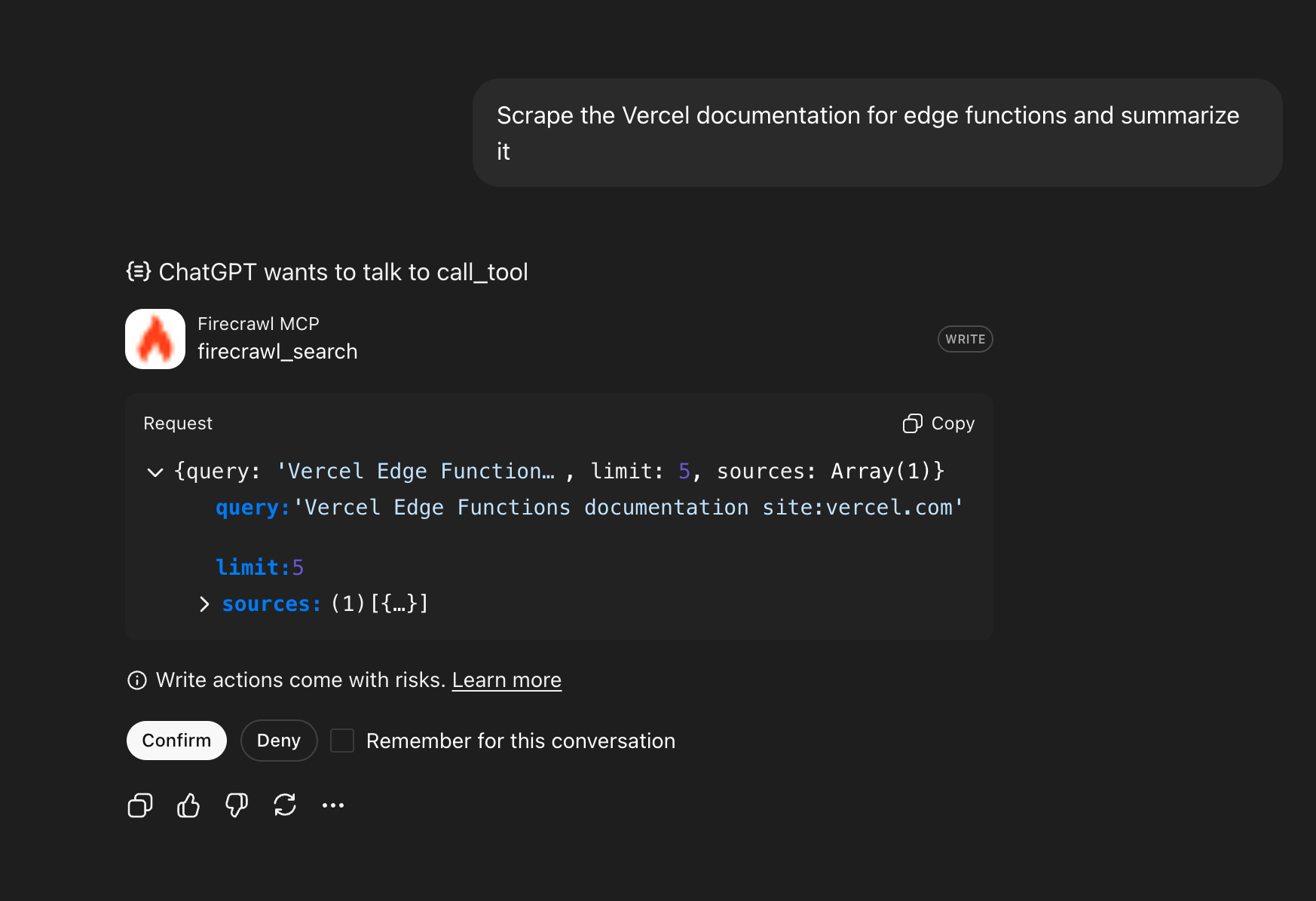 You can check **"Remember for this conversation"** to avoid repeated confirmations during the same chat session. This security measure is implemented by OpenAI to ensure MCP tools do not perform unintended actions.
Once confirmed, ChatGPT will execute the request and return the results.
You can check **"Remember for this conversation"** to avoid repeated confirmations during the same chat session. This security measure is implemented by OpenAI to ensure MCP tools do not perform unintended actions.
Once confirmed, ChatGPT will execute the request and return the results.